Server-side scripts - Using virtual PLC
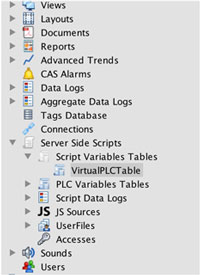
You can create virtual tags in virtual PLC to show and use in your project, eg. Views, trends, alarms etc. To do so, first define the PLC table in Server Side Scripts section.
1.We have created the “VirtualPLCTable”
2. And now we will create some tag inside. You can also create multiple tags.

Tag has name value@script and it has initialization value of 10
3. Now you can use the tag anywhere in your project. So let’s put it into the view:
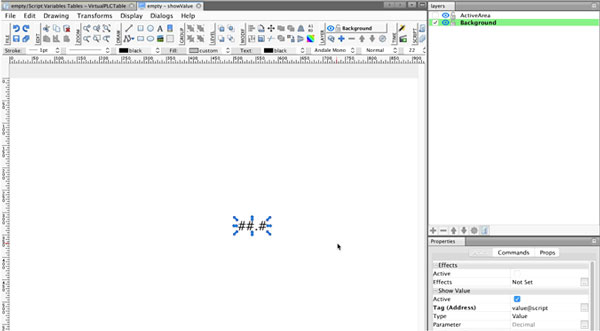
We have created the text element, and we have used the Get Value animation where we used our tag value@script
4. Next step will be to periodically update the value from scripts. To do so, please use the function R/W Tags located in the toolbar of the script window.
a) Create a timer (you can use the Timer button in the toolbar)
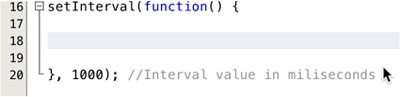
b) Now I will use the R/W tags function,
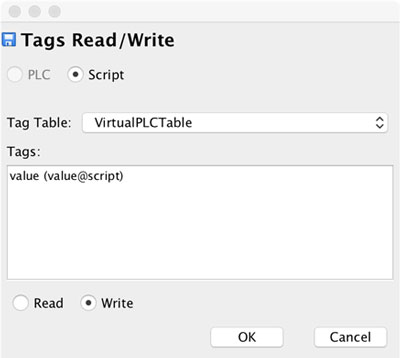
After hitting “OK,” the generated code will look like this
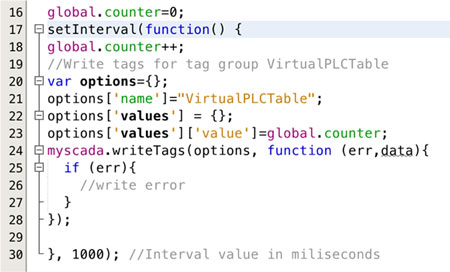
We are using a global variable counter to increase the value of value@script each 1 second.
- TIP: analogically, you can read values from virtual PLC using your scripts. To do so, navigate again to the R/W Tags function and select read instead of write.
Populating data-log from Server Side Scripts
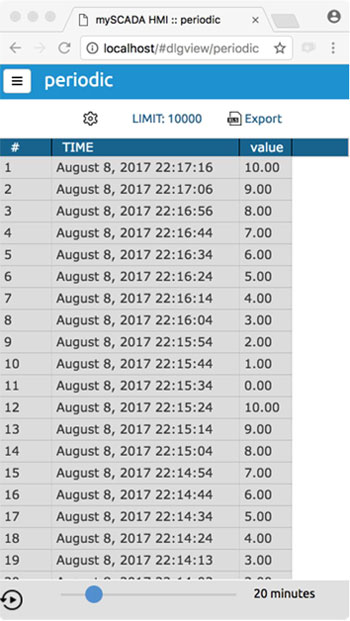
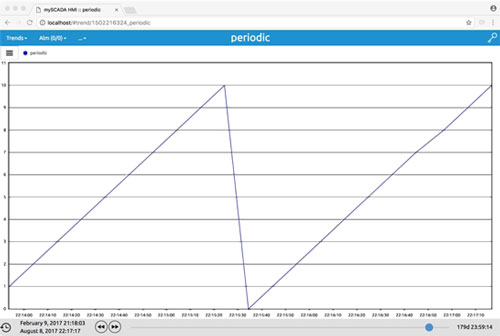
Often you need to compute something in the scripts and save results into the history – eg. Into data-log. To do so, we will present you with a simple example where we will every 10 seconds increase the value by one and save it into the datalog. When the value equals 10, we will start counting again. In the result you will have a datalog populated by values from 0 to 10 each 10 seconds. Let’s get started
1. Create a Script Data log. To do so, navigate to Server Side Scripts -> Script Data logs
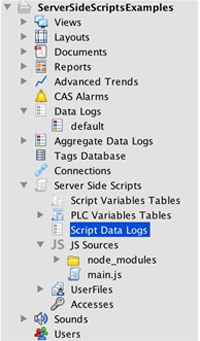
2. Select New in the main toolbar
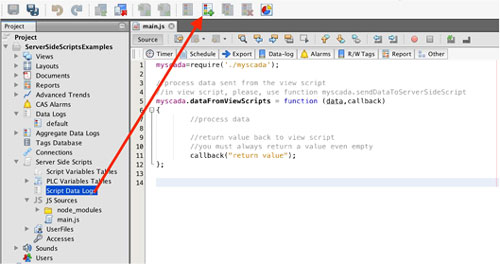
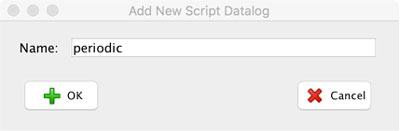
3. Give your datalog a name
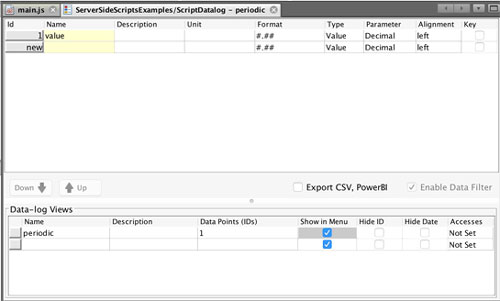
4. Now we will add one tag to the datalog and name it value
5. And now let’s navigate to the main.js script.
6. Create a timer and set a repeat to 10 seconds
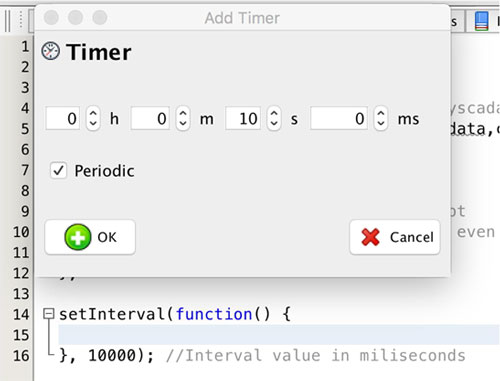
7. When inside a timer, we will press “Other” on the script toolbar
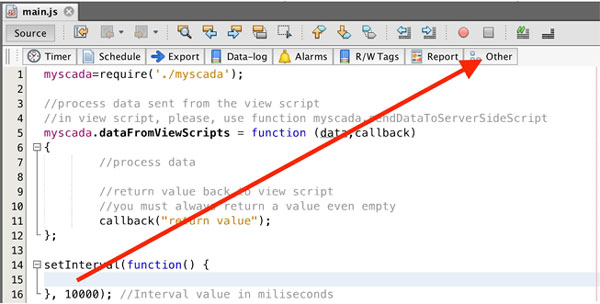
8. In the following dialog, we will select “Insert data data-log row” and select “periodic” data-log we have created in previous steps.
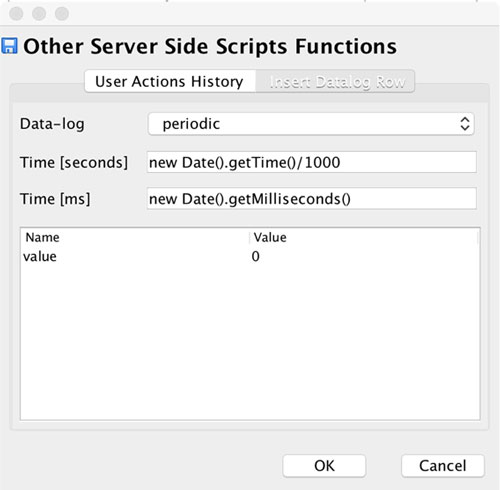
9. When we press “OK” button, we will see following code:
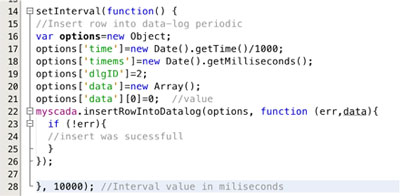
10. We will modify it to get the incremented value:
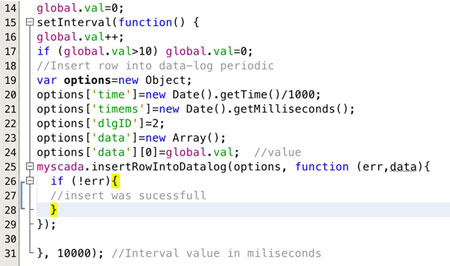
As you can see, we have added the global.val variable which we increase with each timer tick. This variable is written to the data-log using the function insertRowIntoDatalog
11. When your project runs, it will automatically write the value to the data-log every 10 seconds