
Creating a project
On this page
Start using myDESIGNER by creating a new project.
- Watch video describing this functionality: https://www.youtube.com/watch?v=IpxeE13HyzI
1. Click on the New Project icon in the main toolbar or use the command New Project from the main menu Project-> Projects.

2. A new dialog window will show up with 3 options:
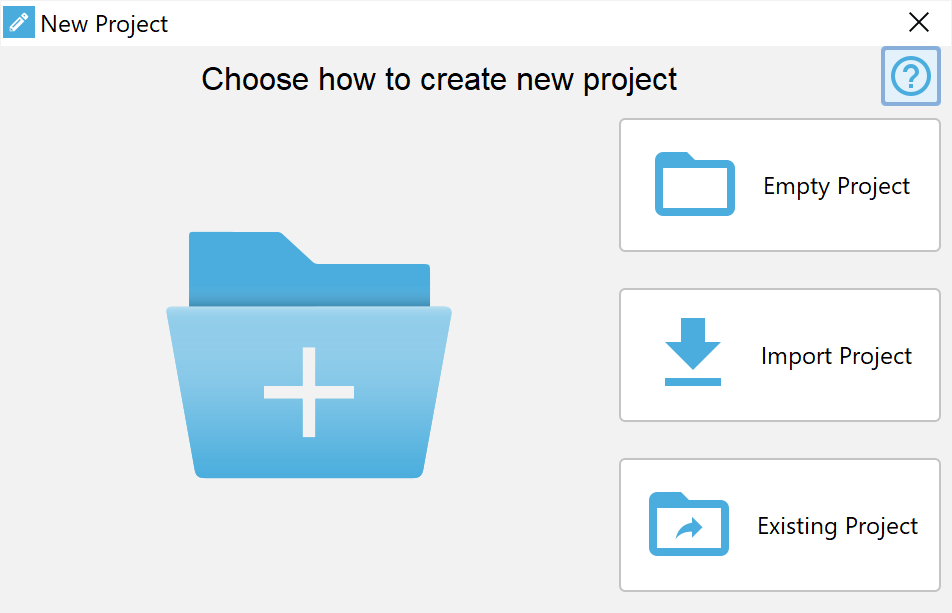
Empty project
With this option, you can create a new empty project.
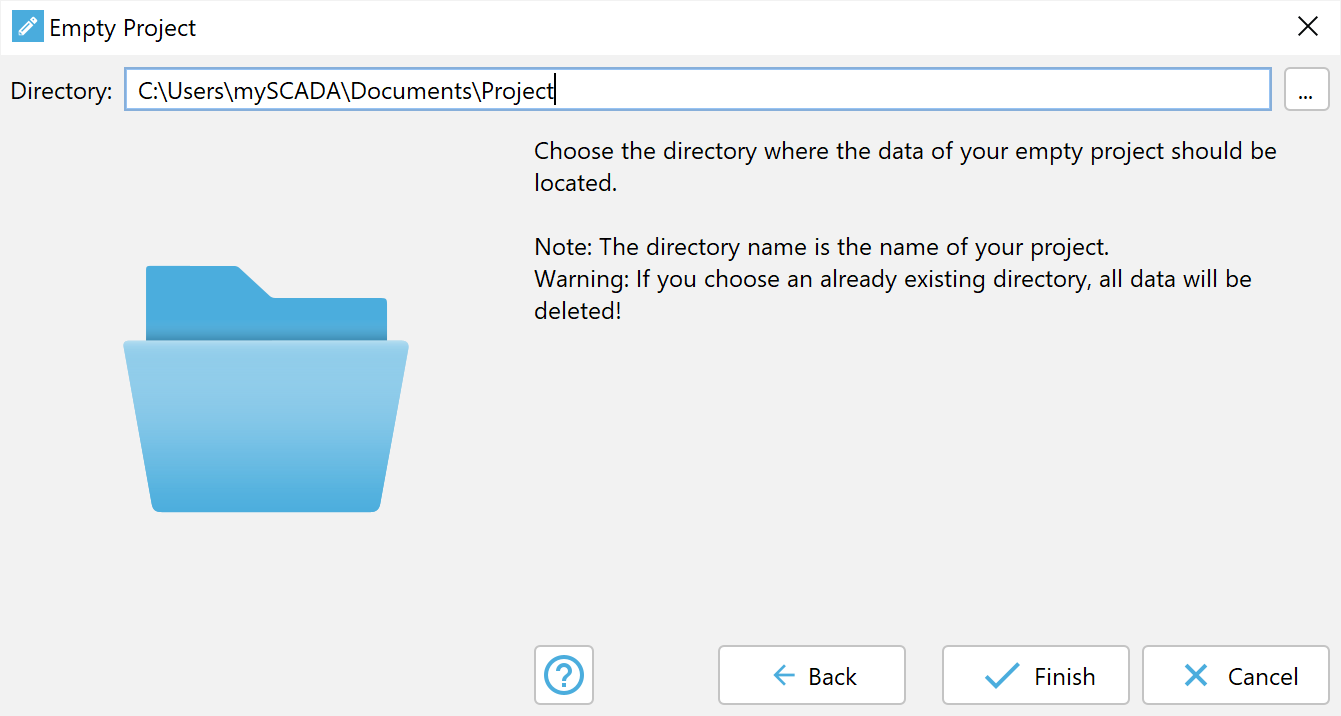
1. Choose the directory where your empty project will be located.
2. If the selected directory is not empty, all its files will be deleted.
3. Click on the Finish button to create an empty project.
Import Project
This option imports another project from an MEP file (all exported projects of mySCADA Designer use this extension).
- Watch the video describing this functionality: https://www.youtube.com/watch?v=d8jVR75eGz0
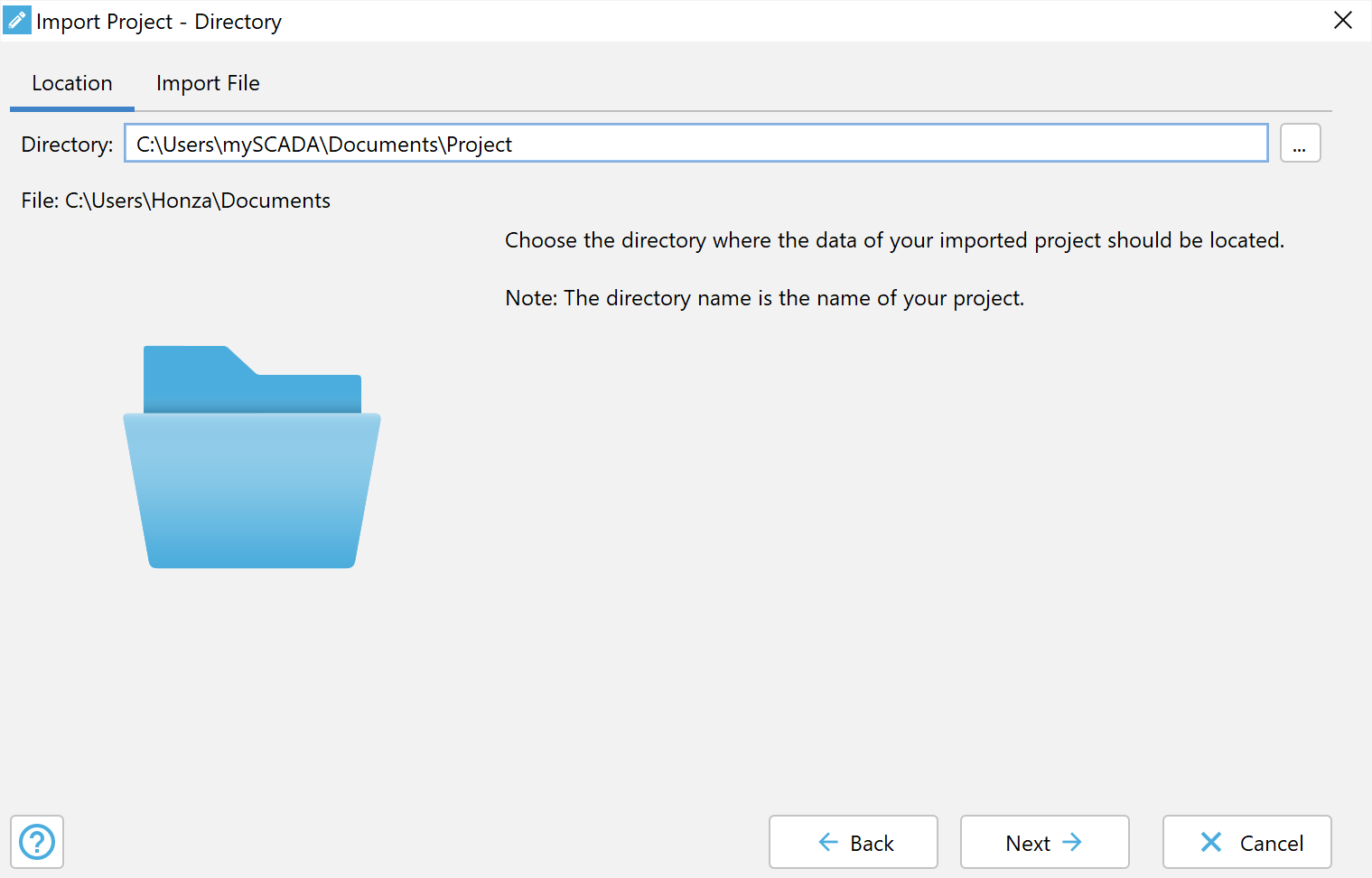
1. Choose the directory where the project to be imported should be located and click Next.
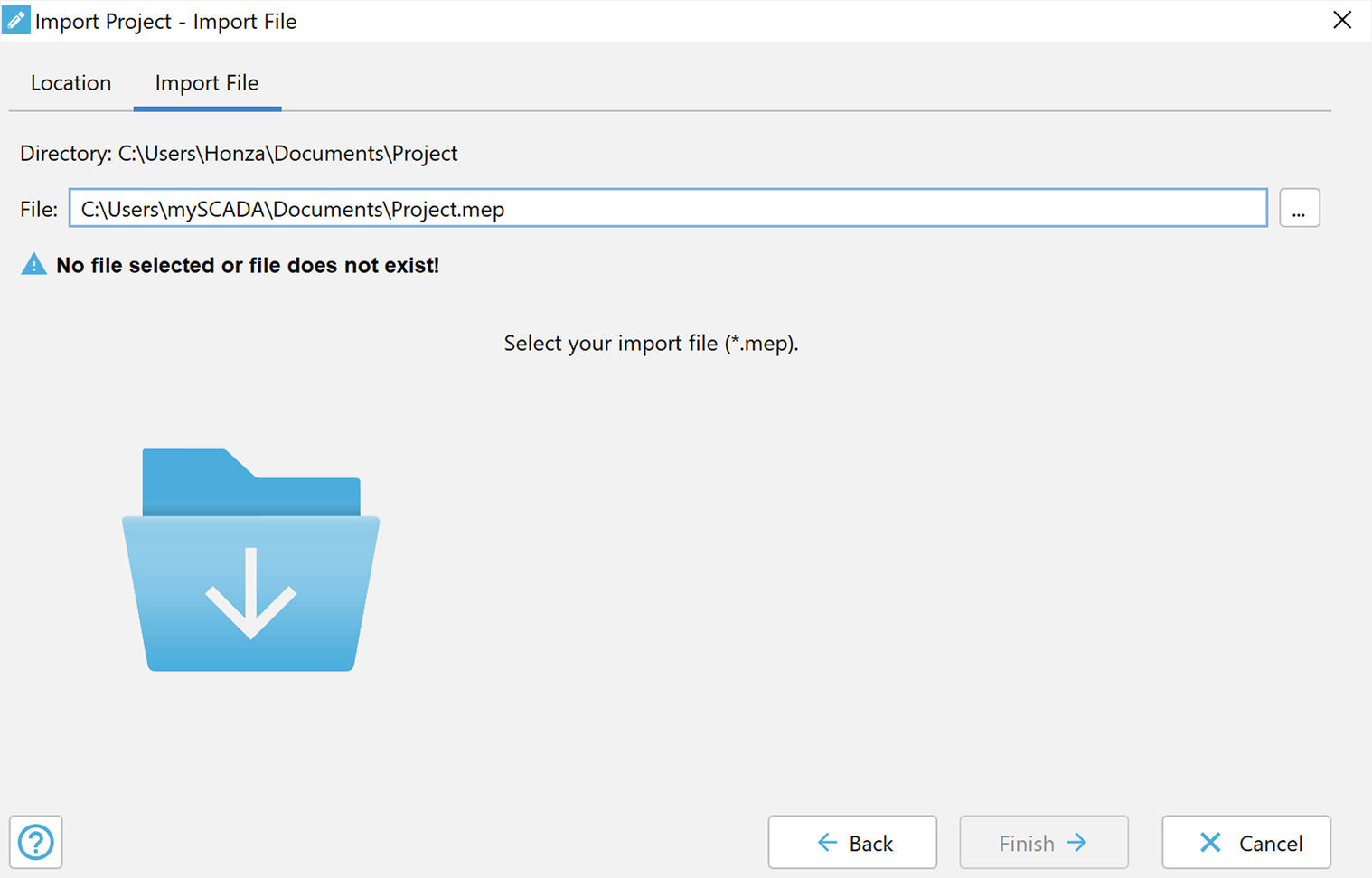
2. Click on Import File (suffix *.mep) and then on the Finish button - an imported project will be created in the selected directory.
3. If the directory is not empty, all its files will be deleted!
4. Click Finish to finalize the import.
Existing project
With this feature, you can open an already existing project:
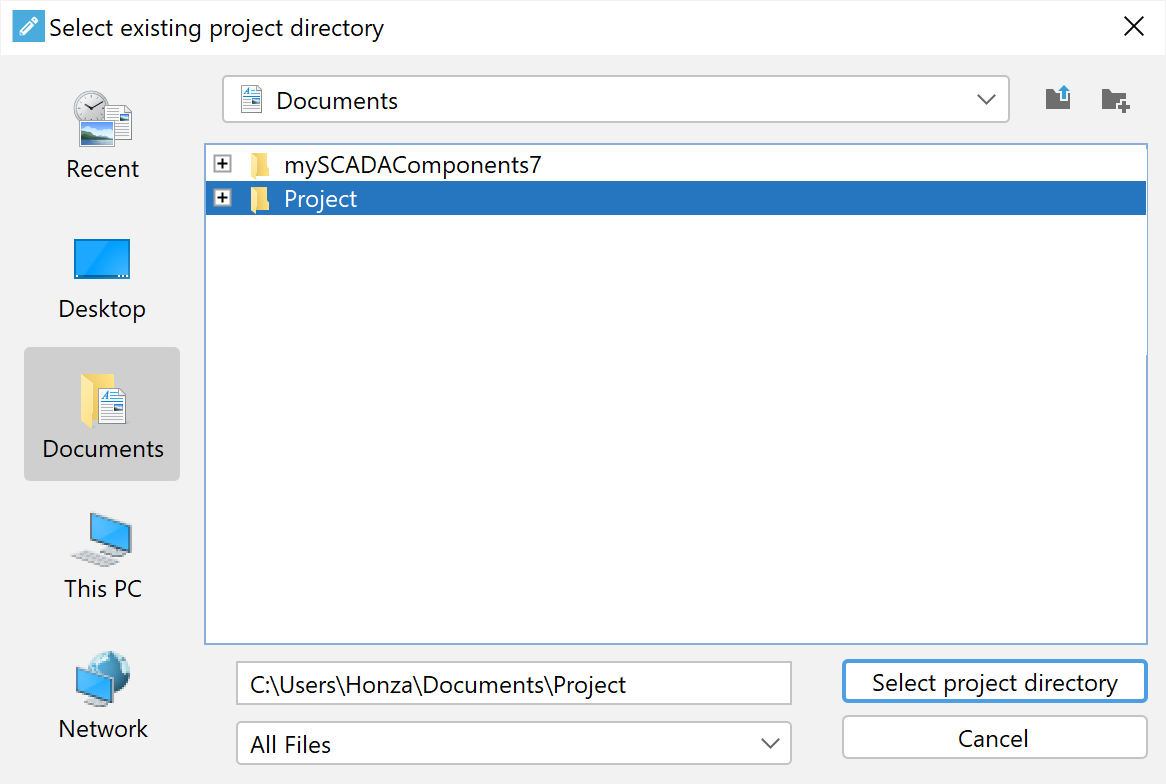
Navigate to the project directory and click on “select project directory.” If the directory contains project files, the project will be opened in myDESIGNER.