
Data-logs views Data grouping
On this page
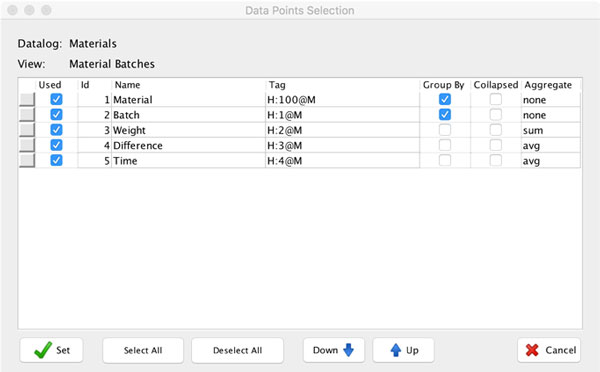
You can group data in the data-log view table. You can even have multiple groups nested. To use data grouping, check the Group By check box for the data points you want to group them by. Then, for the rest of the data points, specify the Aggregate function; you can use none, sum, average, minimum, and maximum. If you don’t provide an aggregate function, the corresponding field will be left blank.
Data Grouping Example
Suppose you have a batch process where you would like to show production data grouped by material and then by batch numbers. To do so, we will create a data-log and corresponding data-log view.
1. Create your data-log 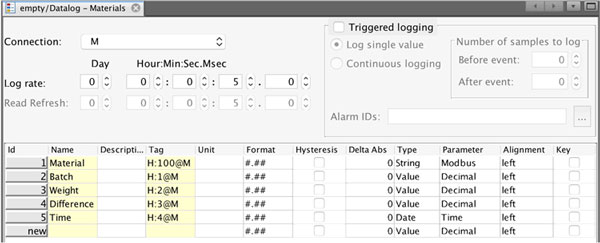 2. Create data-log view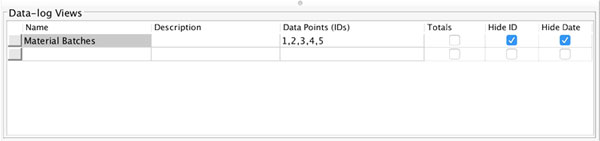
3. Set up data points. Check Group By for Materials and Batch data points. For ungrouped data points, select appropriate aggregate function.
 4. Test your view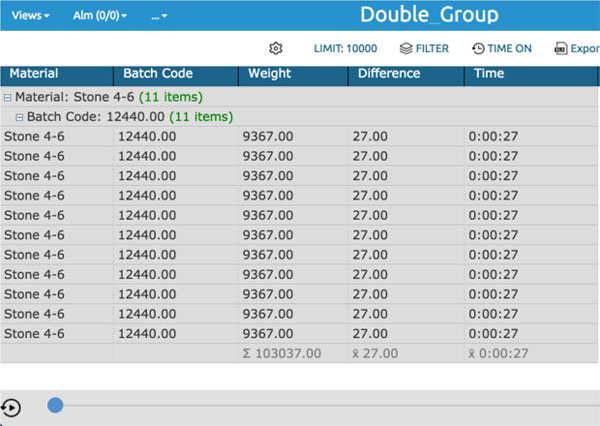
As you can see, your data are grouped by Material and then by Batches. You can collapse each group by clicking on the “+” button.