
Equations in view script using params.
This feature allows the user to make an equation in view script and pass parameters to the equation. In this example I will show you how to do it, first I have created 5 integer tags, 4 of them are inputs and 1 is output. 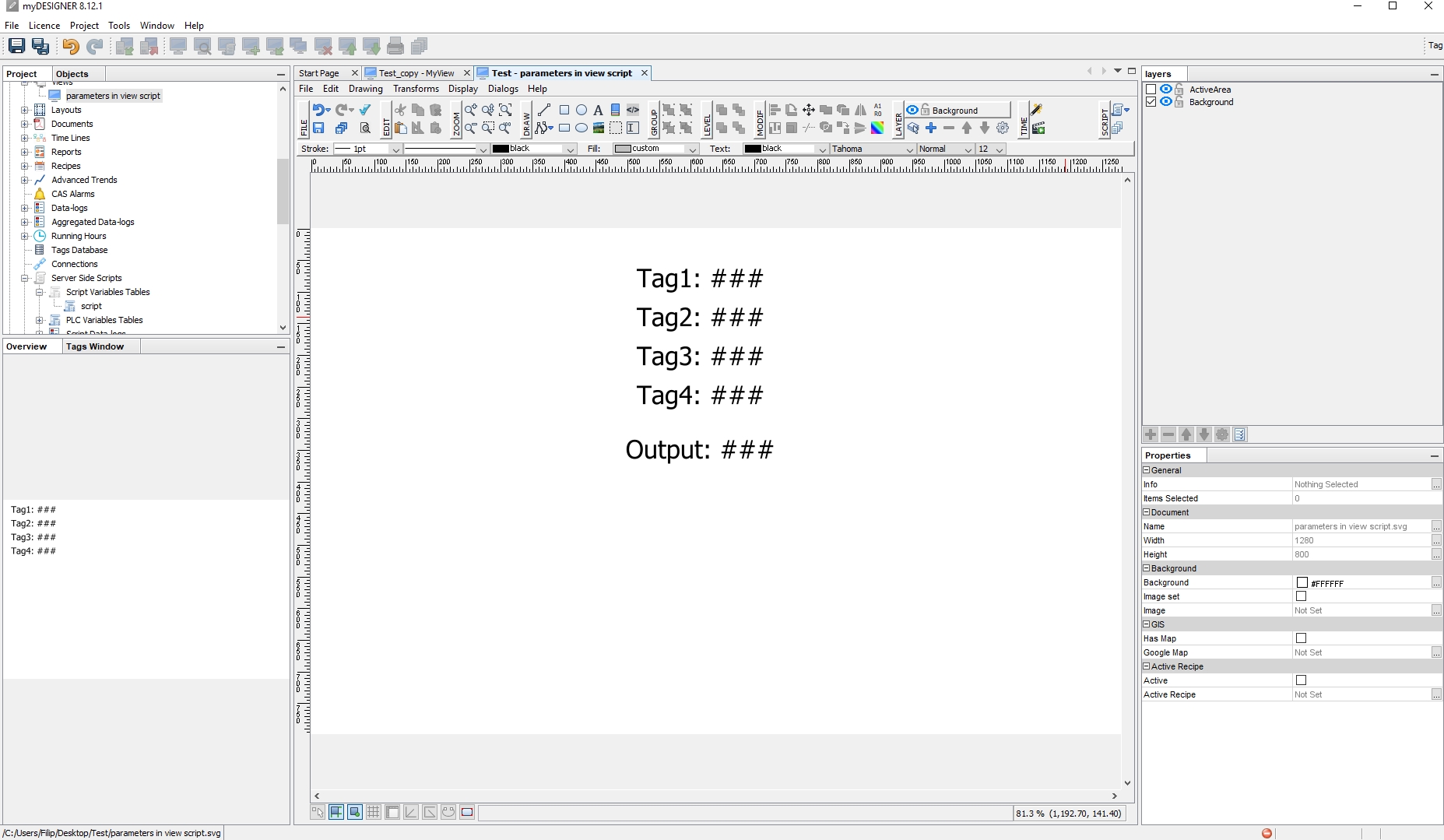 Now I will enter view script and create a function function Equation_withparameters(a,b){ } Where a and b are parameters which will be replaced then by a current tag value when the function is executed
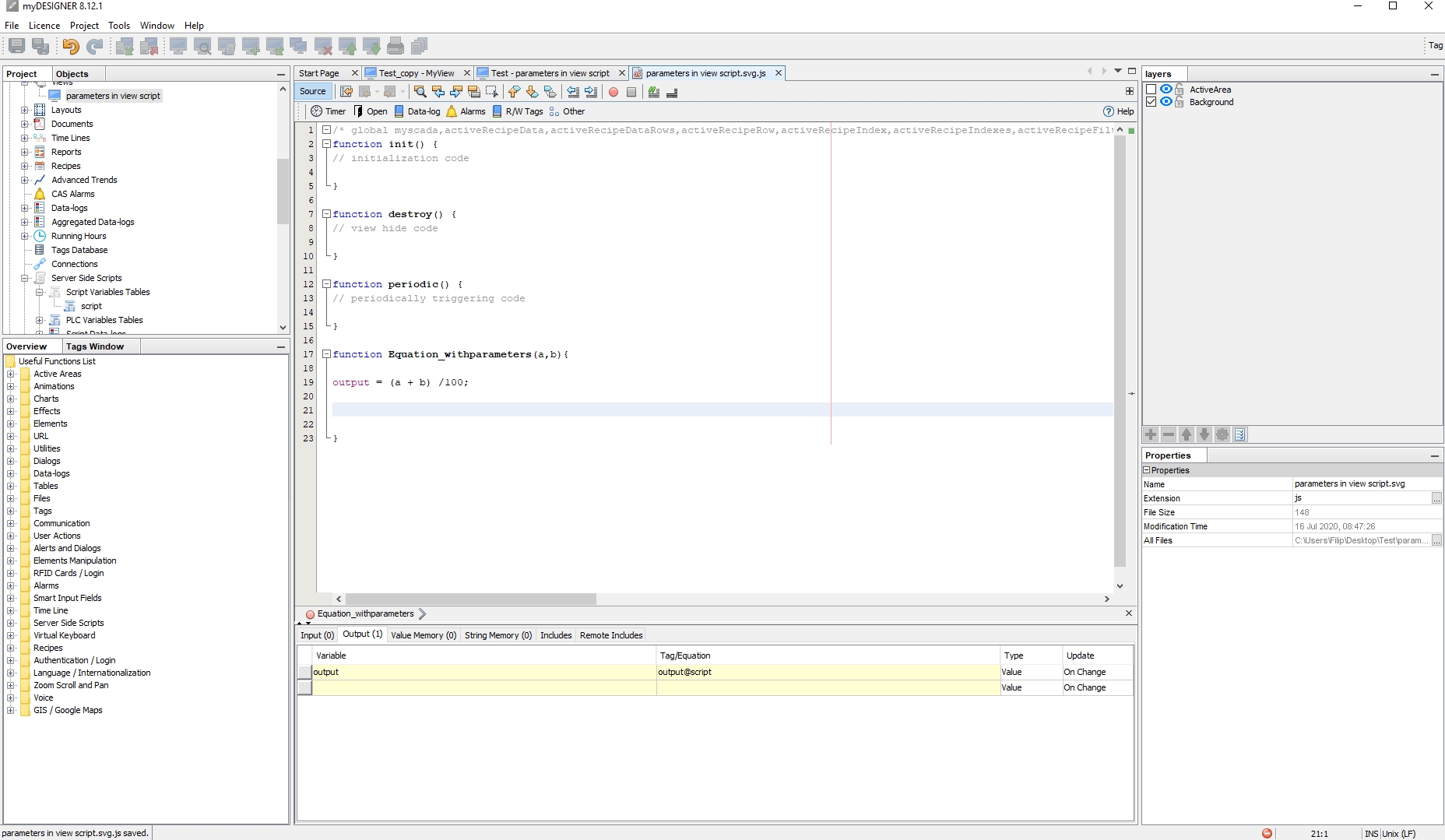
 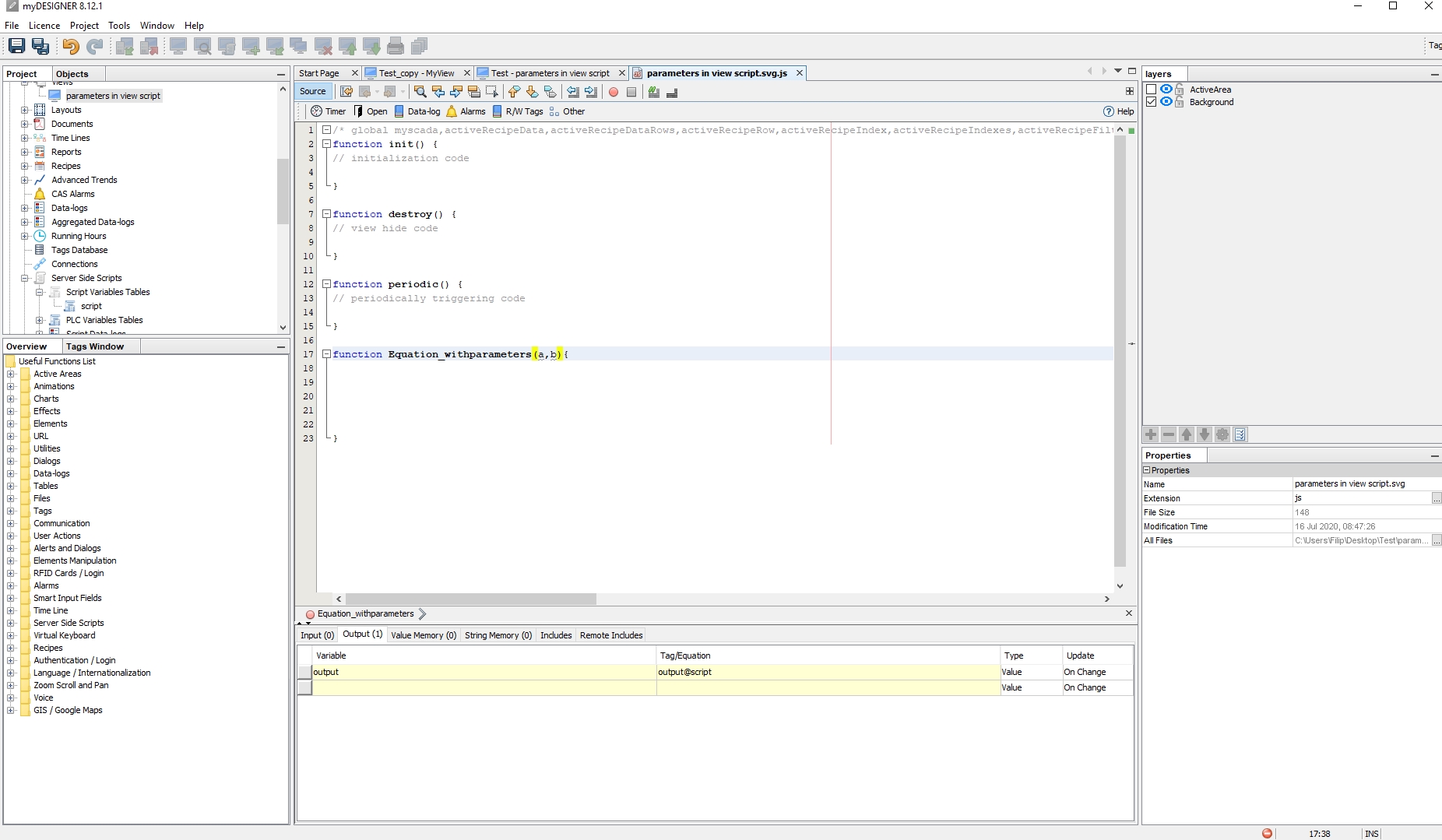 Now I will write down a simple equation for this example first I need to specify an output variable which is output@script in my case this will allow me to use this variable inside a script. The equation is simple output = (a + b) /100; So, in the end, the whole code will look like this: function Equation_withparameters(a,b){ output = (a + b) /100; }
  Now I will add to the view some kind of object which will execute code on click in this sample I will add a rectangle object. I will put a set command on click on the object.
  Now I will enter a script section and in the function list, I will select the Equation_withparameters(a,b)
  Now I will specify parameters of function by clicking on a “teeth wheel”
 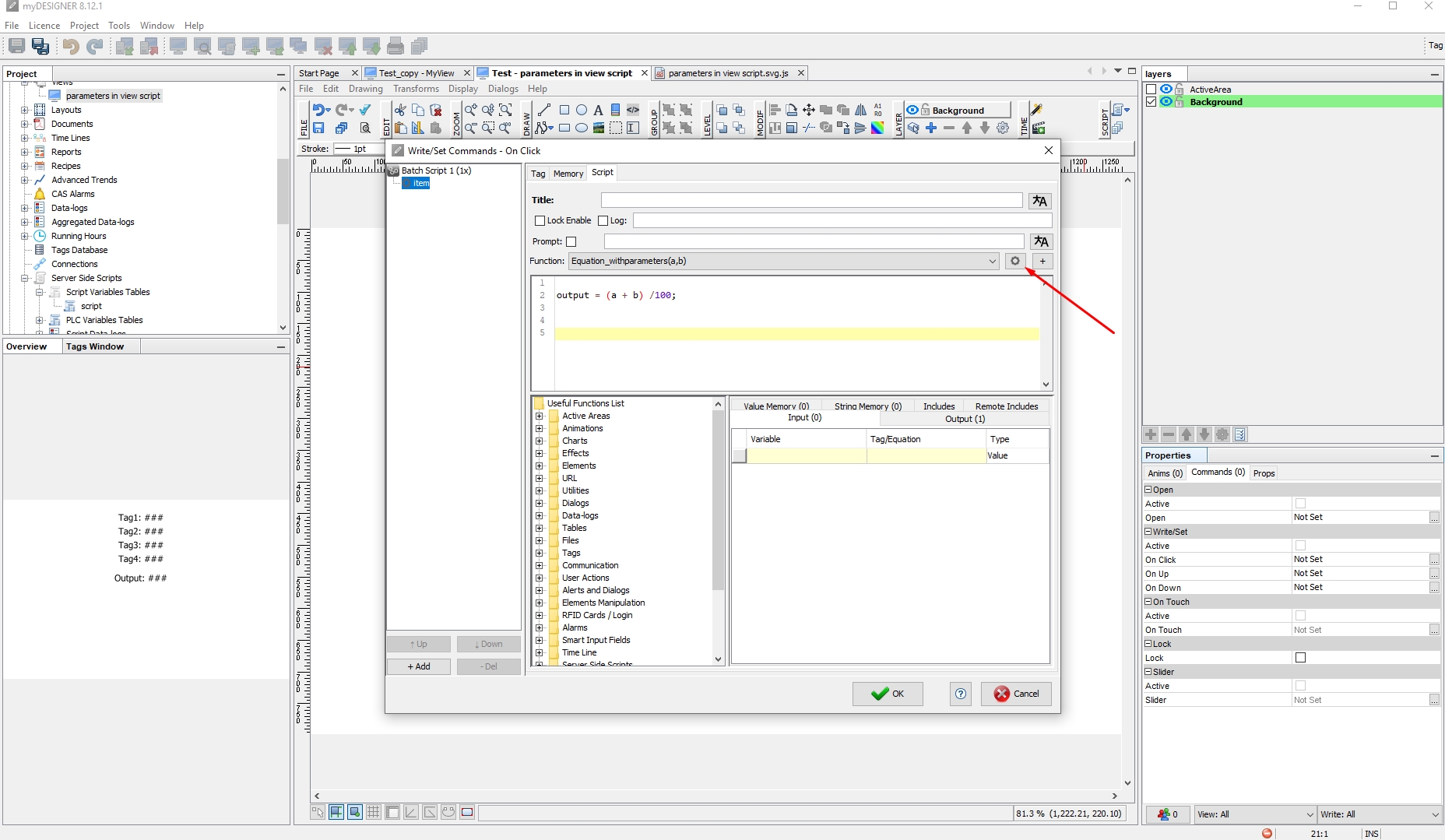 Which will open a new table where I can assign tag or value to the parameter, in this case, I will assign to “a” parameter tag “tag1@script” and to parameter “b” “tag2@script” So when I click on rectangle it will replace parameters by a CURRENT value of the tags.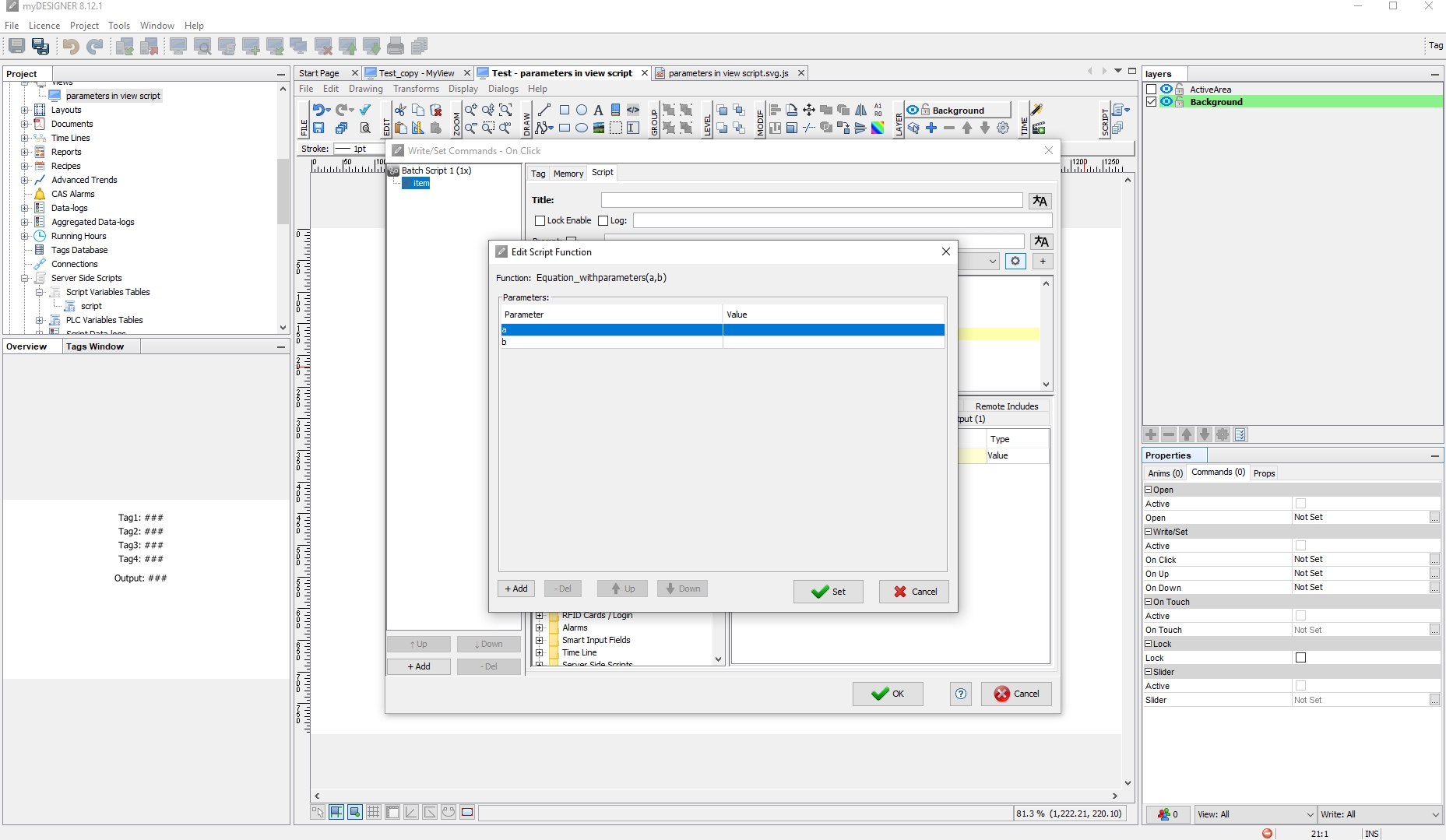

 Now I will do the same for the other rectangle but to the parameters, I will change parameters which I will pass to the equation for “a” I will use “tag3@script” and for “b” I will use “tag4@script”
 DOWNLOAD DEMO PROJECT HERE: