Data-logs properties
On this page
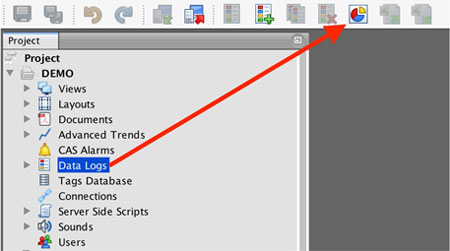
You can specify several parameters in data-logs properties, including among others, size distribution, maximum log time, and position of data-log views in the menu. To do so, please select a data-log folder in the Project tree and click on the data-log properties icon.
You will be presented with the settings dialog:
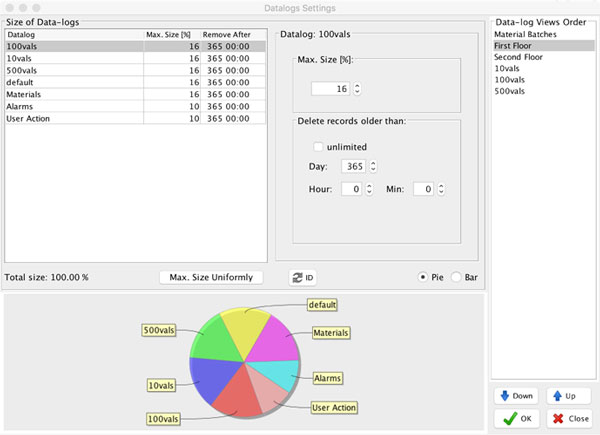
Setting the Size Distribution of Data-logs
The most important part of the dialog is the ability to set the distribution size for all data-logs defined in your project. Running out of space will start deleting your oldest records. In this section, you can specify which data-log historical data will be removed first. Once the space reserved for data-logs is depleted, mySCADA will delete data according to these specified properties.
In the following table, you can see the percentage of how much space your data-log will have.
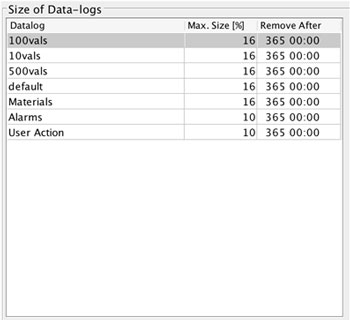
You can change the size in percent. The overall percentage should be equal to 100 percent. You can check the distribution of your data-logs in the graph below the table:
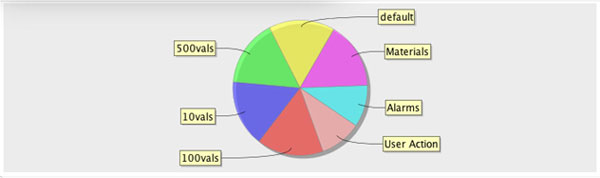
- TIP: You can use decimal numbers to specify maximum size; this can be especially useful if you have a large number of data-logs and need to split disk space precisely.
Setting the Maximum Log Time
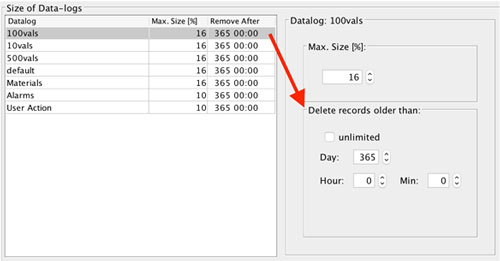
For each data-log, you can set the maximum log time. If the oldest records in the data-log are beyond this threshold, they will be automatically deleted. To do so, please select the corresponding data-log in the table and then change the “Delete records older than” parameter.
Distributing data-logs uniformly
You can distribute data-logs uniformly by pressing the button “Max. size uniformly”.
Changing the position of Data-log Views in Menu
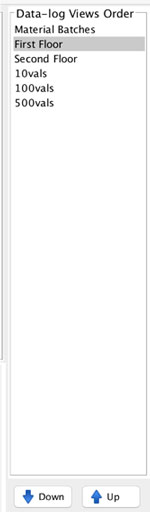
You can change the position of data-log views on the right side of the dialog: