
Projects visual appearance
On this page
mySCADA is a very flexible tool that allows you to modify the visual appearance of your project in a runtime environment freely. You are free to change the fonts, colors, and icons to fit your company’s visual guidelines.
- Watch the video describing this functionality: https://www.youtube.com/watch?v=So78T1730KY
For visual appearance set up, click on your project and then click on the color palette icon in the Main Toolbar.
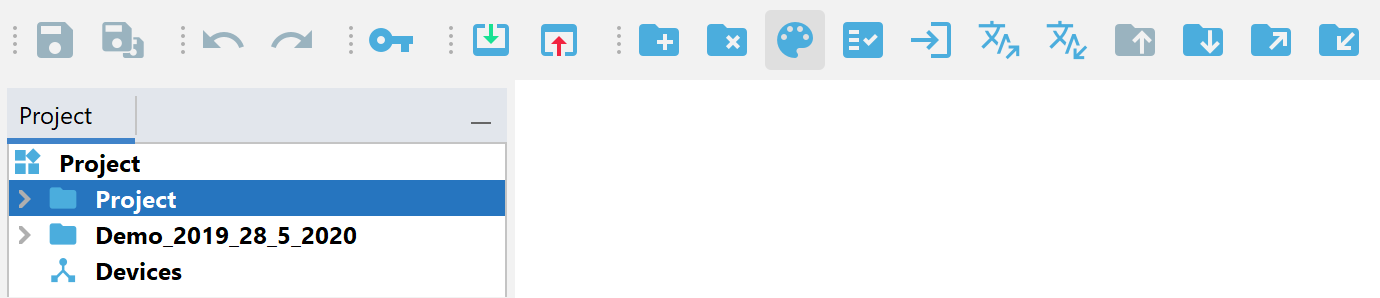 The Visual Appearance Dialog Window will show up: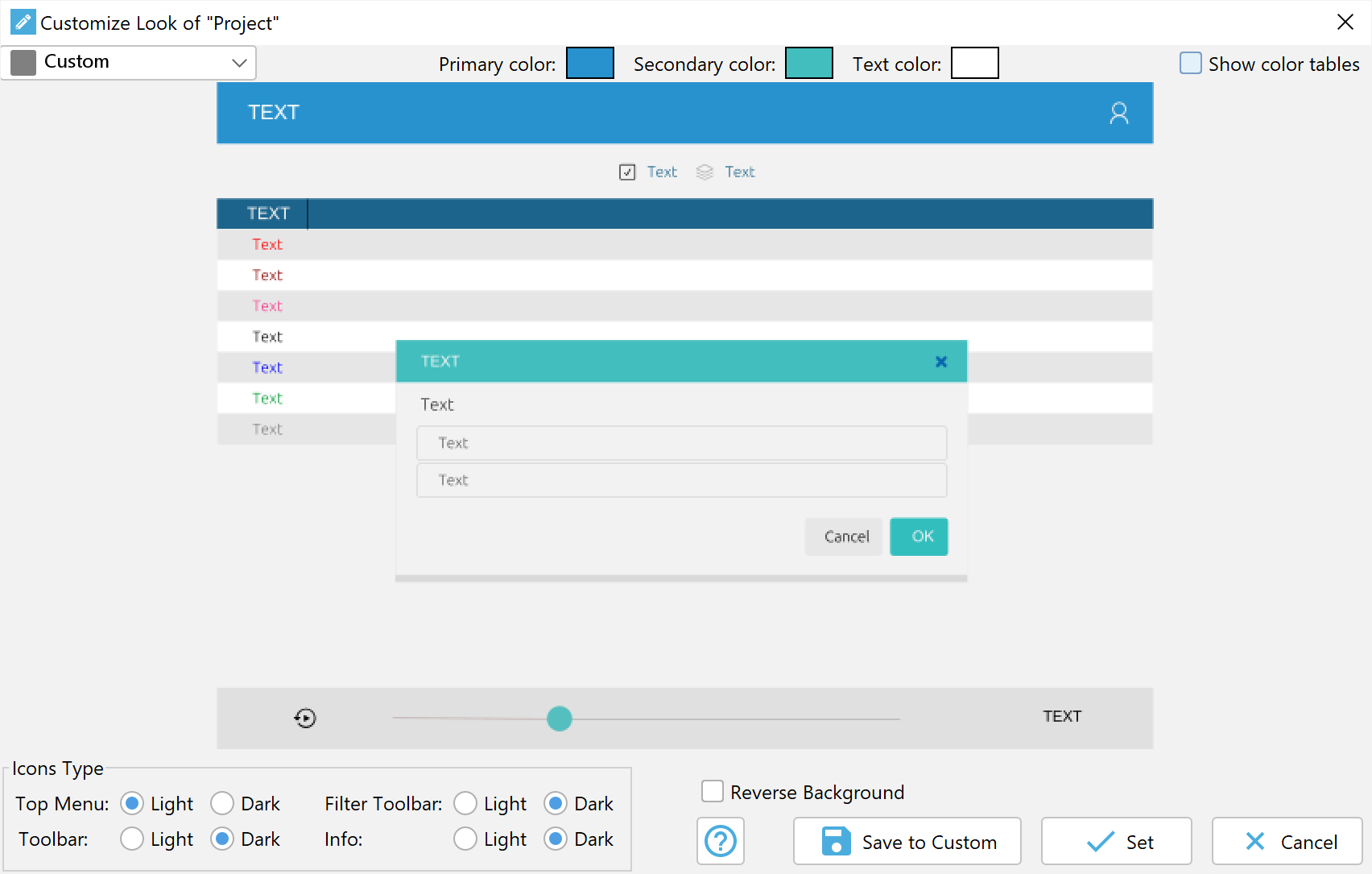
In the dialog, you can see options for the visual appearance of your project in a runtime environment. If you change any color or visual option, you can immediately see how this option is displayed in the runtime environment.
Changing the Default Color
The simplest way to change the default visual appearance is to set a new default color. To do so, click on a corresponding color in the “Default Colors” section.
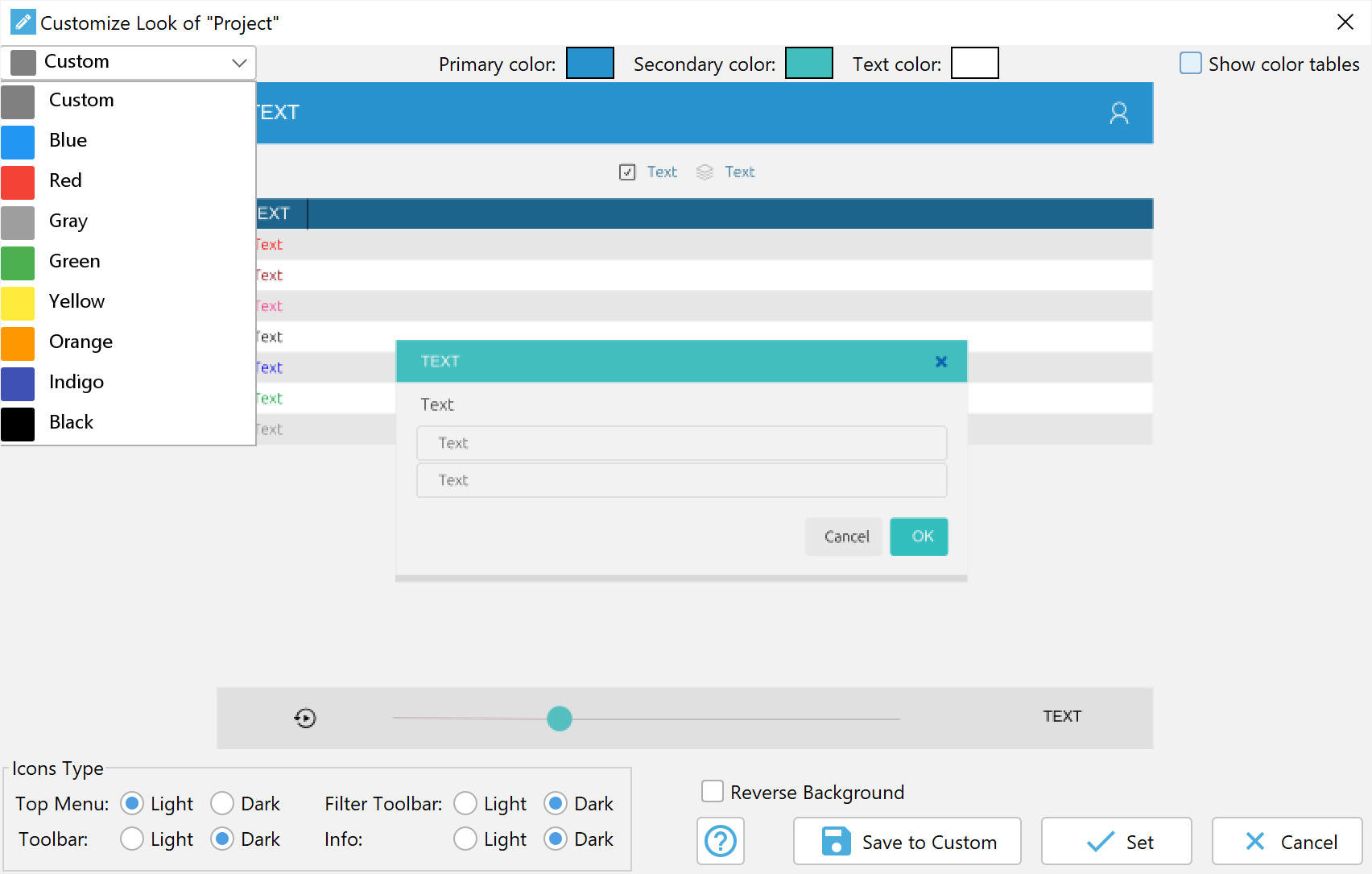 The change is immediately reflected: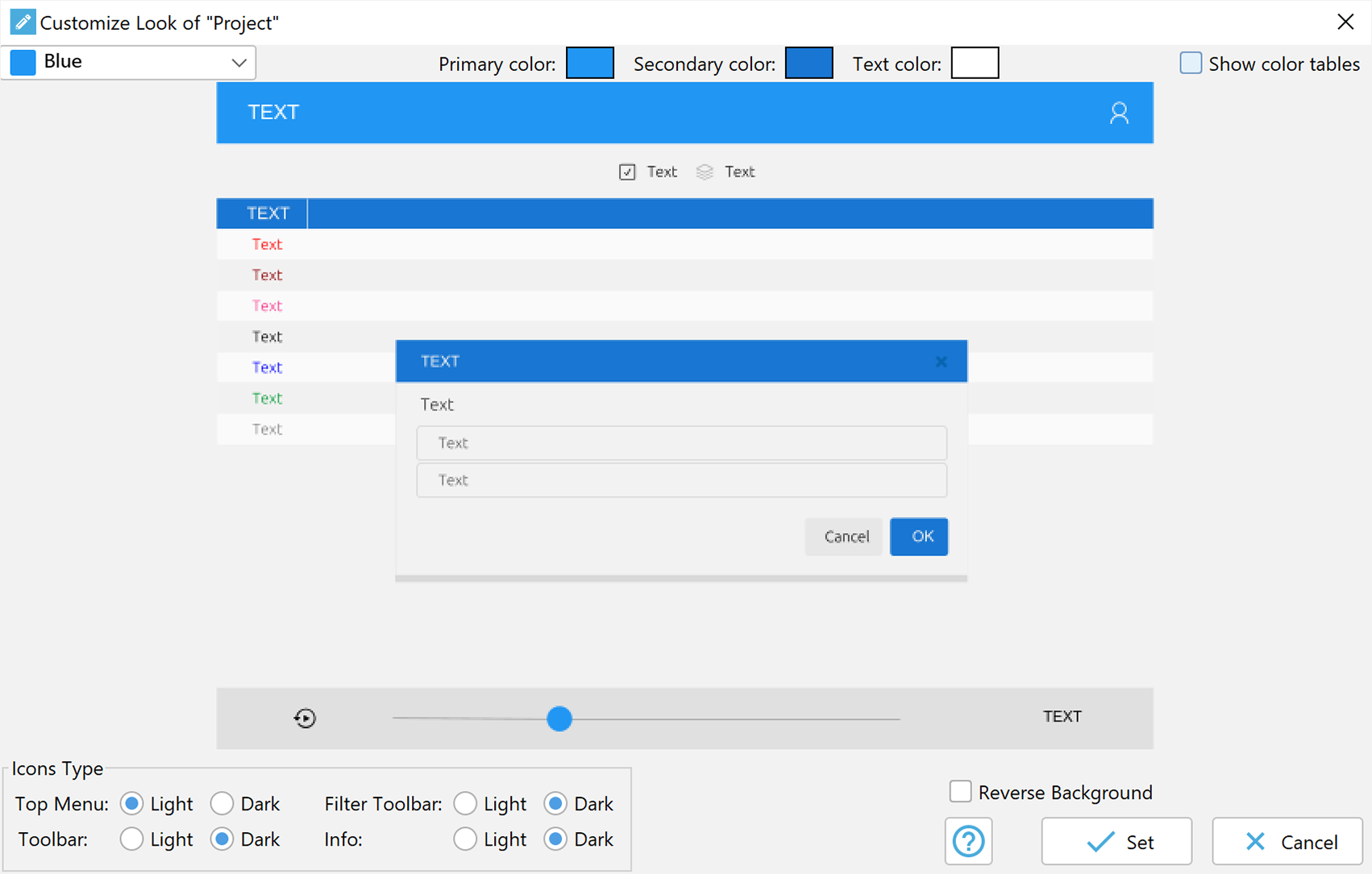
Changing Master Colors
You can very easily change the color scheme to any color you like. Just click and change the Primary, Secondary, and Text colors.
Changes are reflected in all GUI sections: 
Changing Icon Colors
You can change the Icon colors in the section “Icon Colors.” For each visual section of the runtime environment, you can specify different icon colors.

Fine Tuning
You can fine-tune the visual appearance of any on-screen element. To do so, click on the option “Show Color Tables.” The color tables for your project are shown:
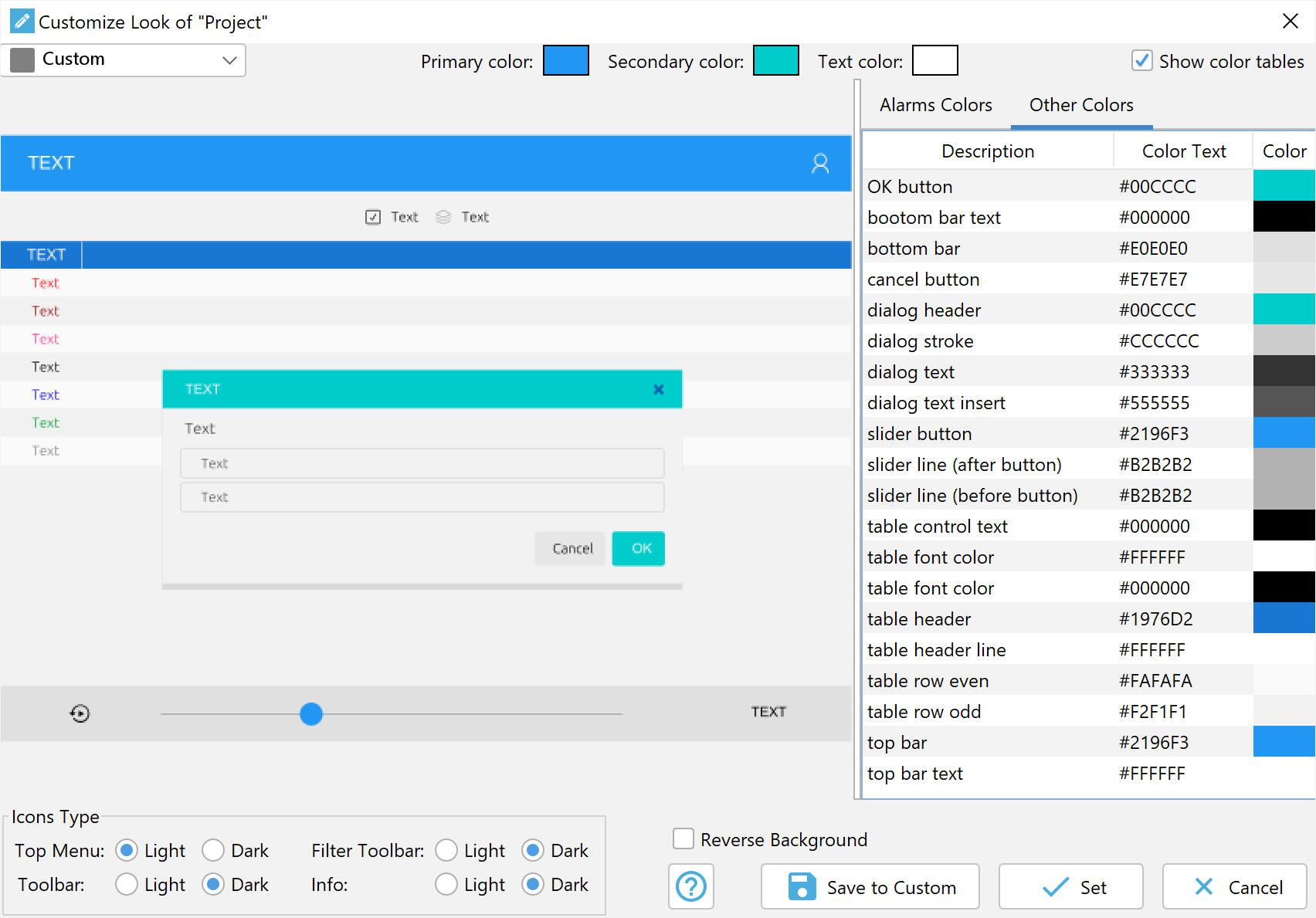
They are split into two parts: Alarms and Other Colors. In the Alarms section, you can set the colors of the text for any type of alarm. In the Other Colors section, you can fine-tune the appearance of almost any element in the runtime environment.
Saving Custom Appearance
You can save your changes for use in other projects. When you change any color or parameter, the “save to custom” button is automatically shown.
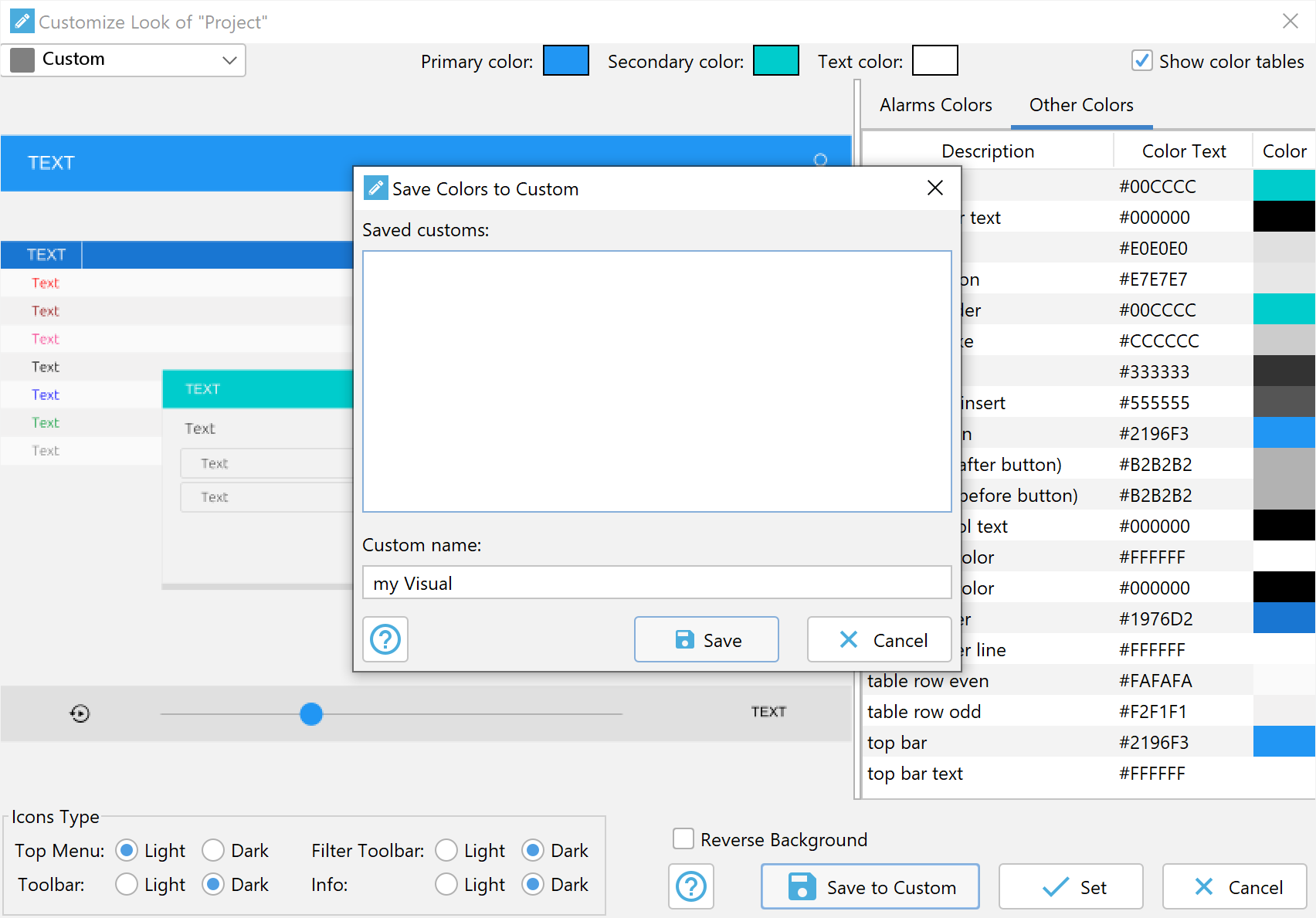
When you press the “Save to Custom” Button, all your changes are saved under a given name. Your custom appearance settings are automatically added to the combo box selection:
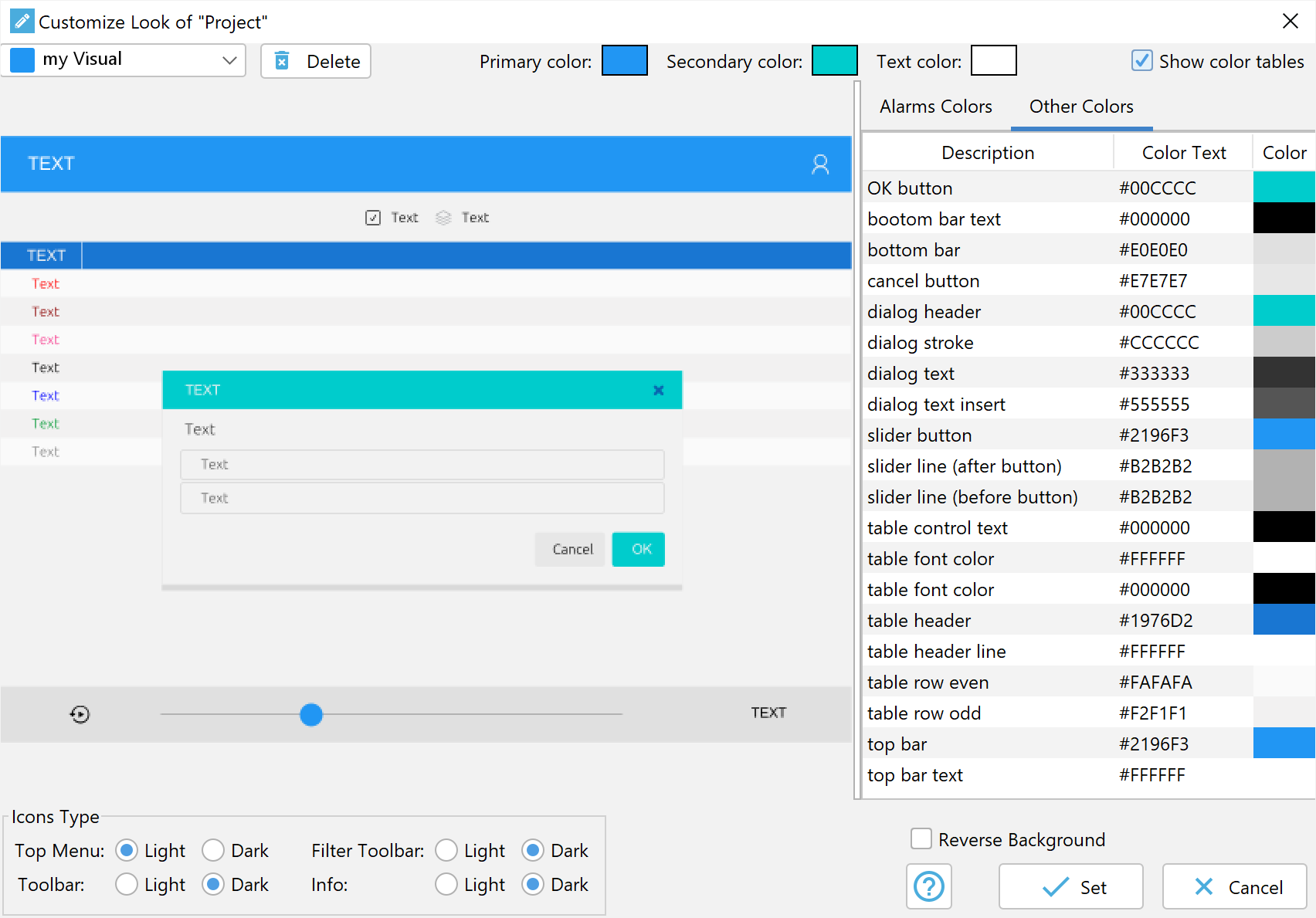 You can delete your custom saved appearance by clicking the “Delete” button.