
Applying a License Key
On this page
This guide explains how to generate and apply a license key for myPRO using the mySCADA PRO Manager and the DataTalk customer portal.
Prerequisites
- An installed and running mySCADA PRO Manager (accessible via the native app or at
http://<device-ip>:34022in the local network). - An account at shop.data-talk.eu with a purchased myPRO license.
Step 1 — Open PRO Manager and copy the HW-ID
Open the PRO Manager dashboard — either the native desktop application or the web interface at port 34022 (e.g. http://192.168.1.100:34022).
On the right side of the dashboard you will see the Licence section. It shows the current license status and your device’s HW-ID. The license currently shows Free.
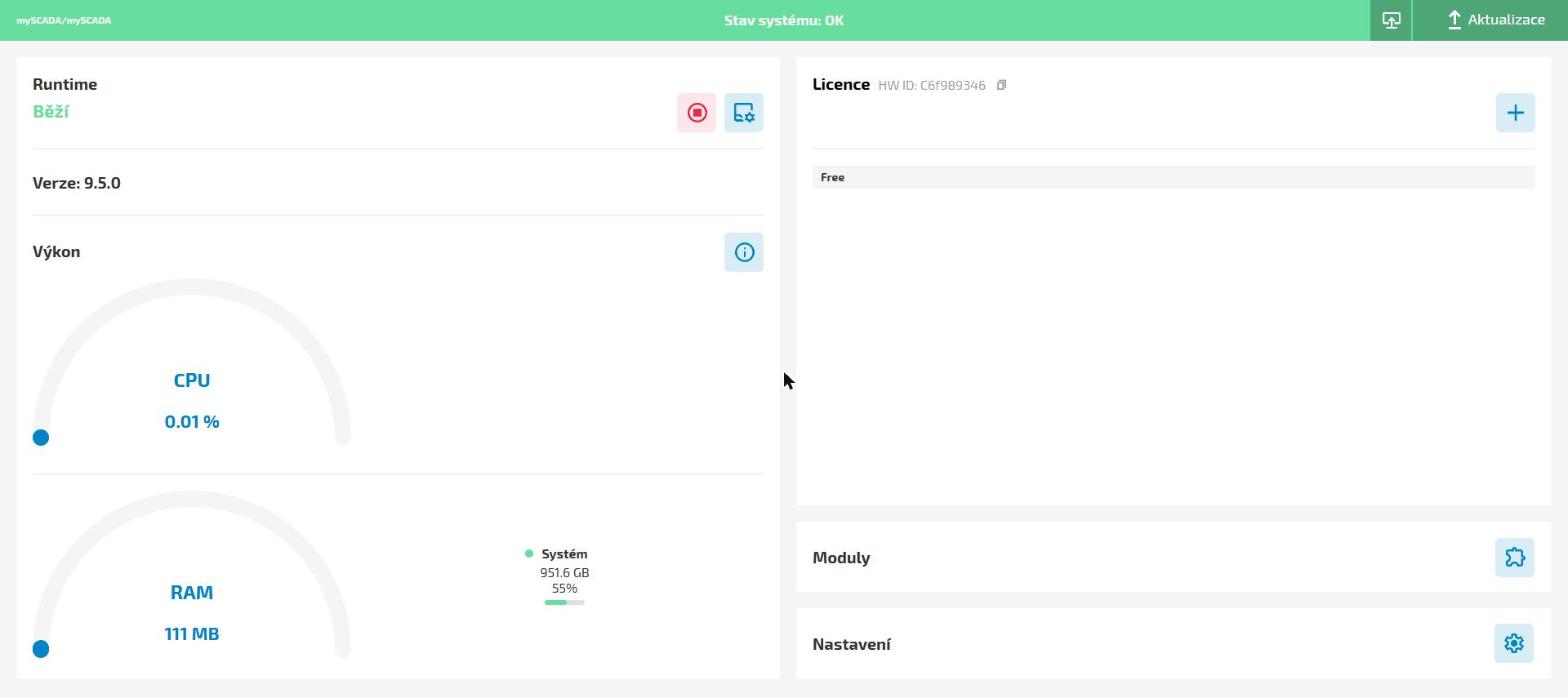
Click the copy icon next to the HW-ID to copy it to your clipboard.
Step 2 — Open the DataTalk customer portal
Go to shop.data-talk.eu/my-account/ and log in with your account.
Navigate to Licensing → mySCADA Licensing.
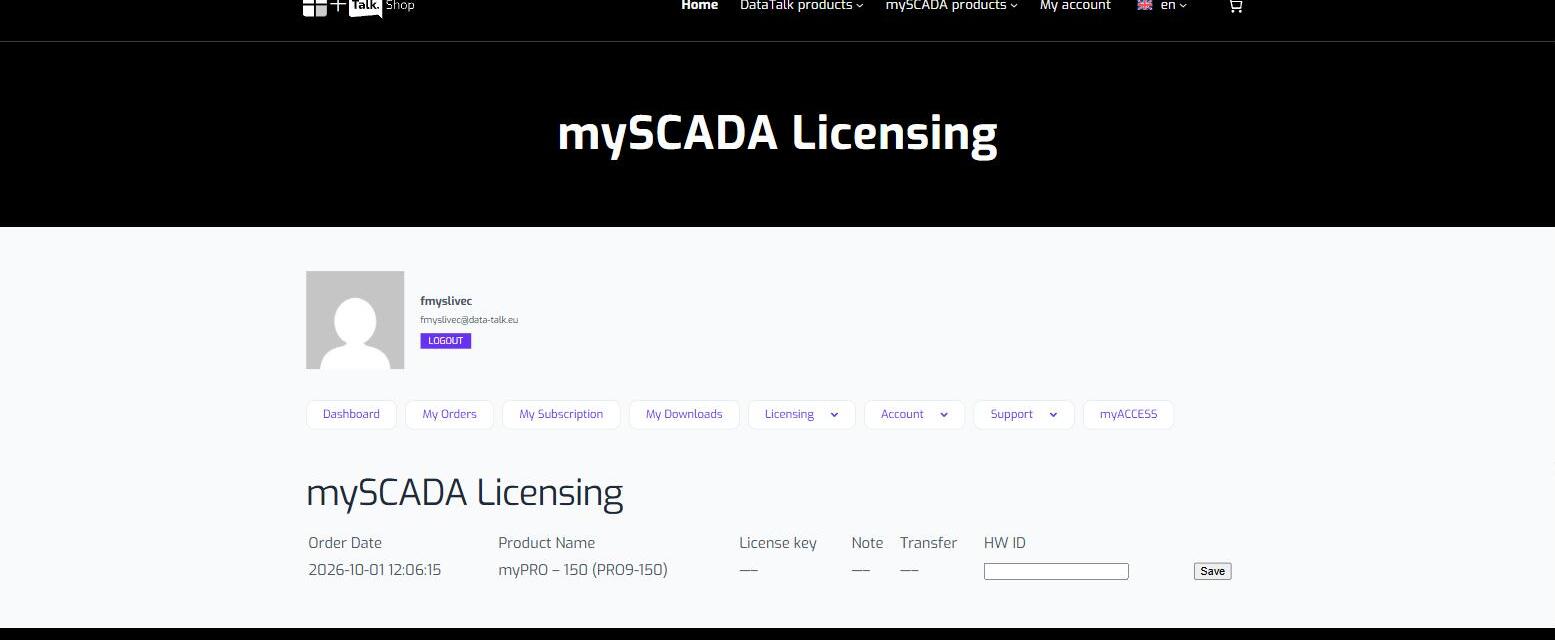
You will see a table listing your purchased products. Find the row with your myPRO license (e.g. myPRO – 150 (PRO9-150)).
Step 3 — Enter the HW-ID and generate the license key
In the HW ID column, paste the HW-ID you copied from the PRO Manager into the input field.
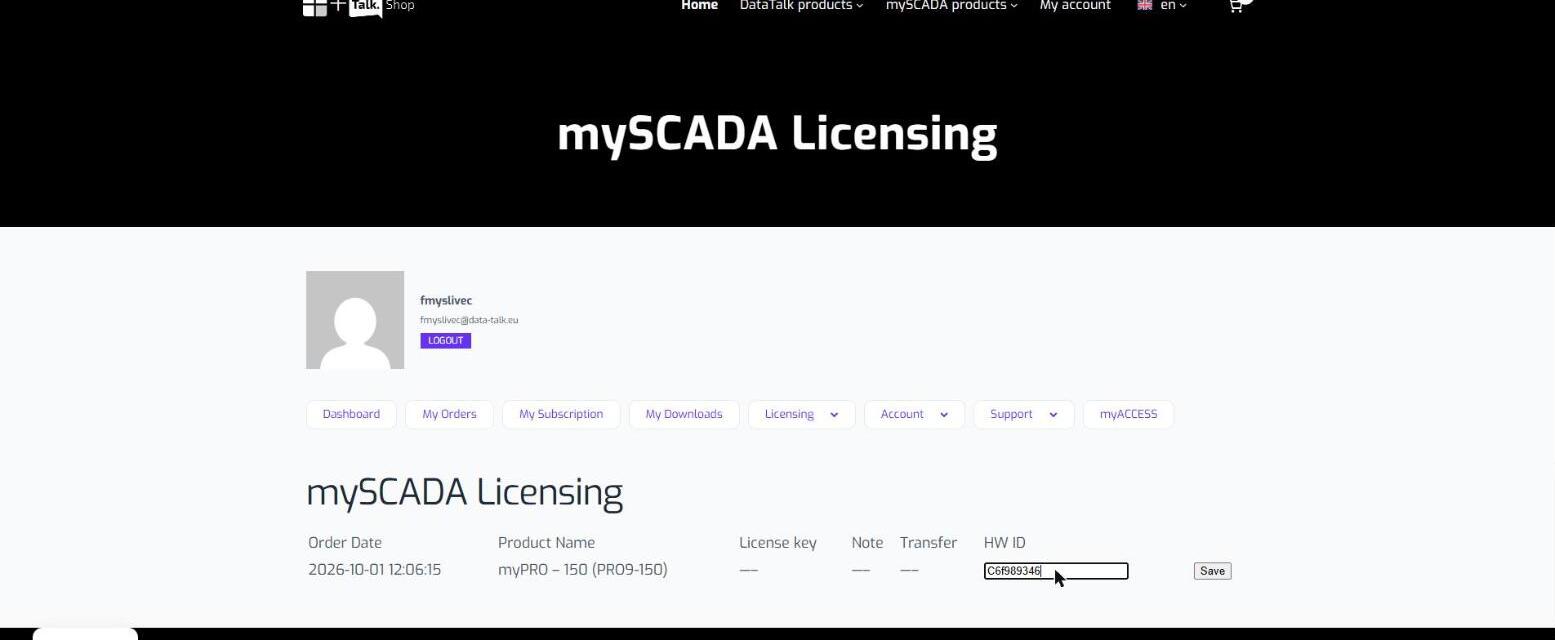
Click Save. The portal will generate a License key for your device, which will appear in the License key column.
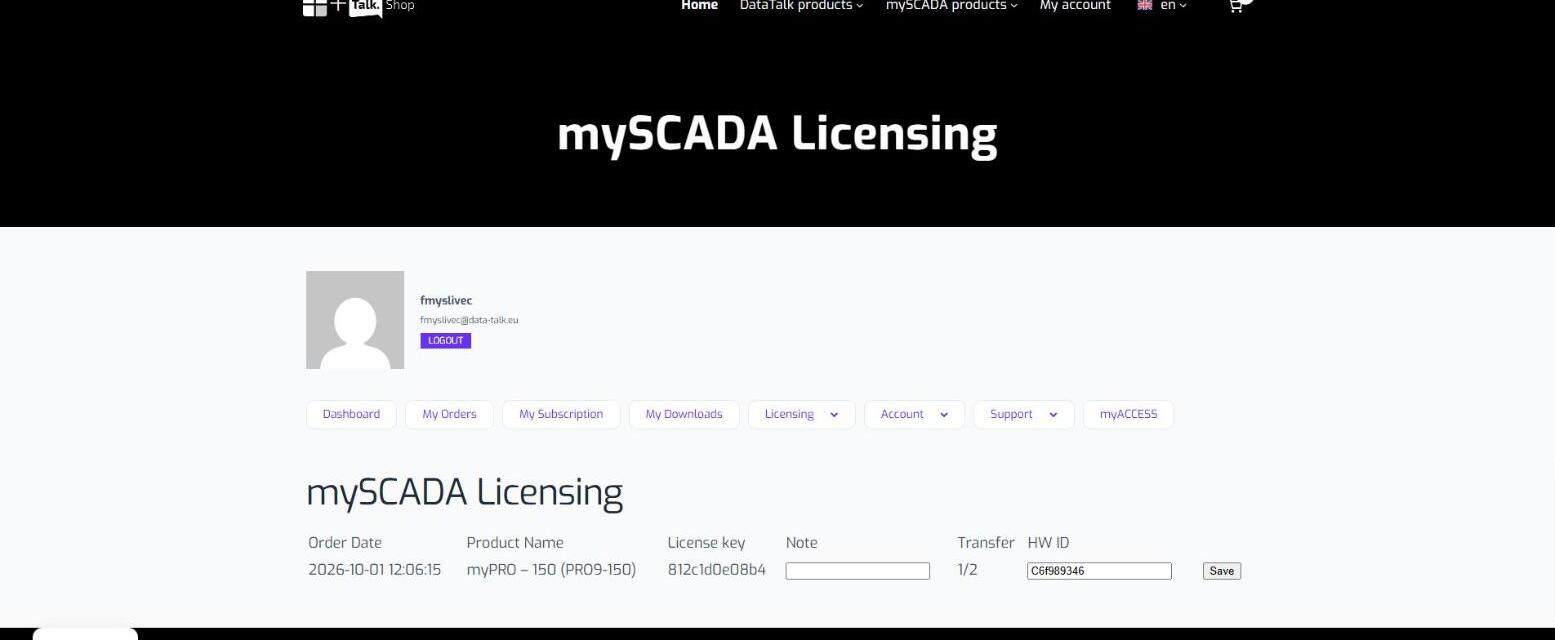
Copy the generated license key.
Step 4 — Apply the license key in PRO Manager
Return to the PRO Manager dashboard. In the Licence section, click the + button. A dialog will appear asking you to enter the license key.
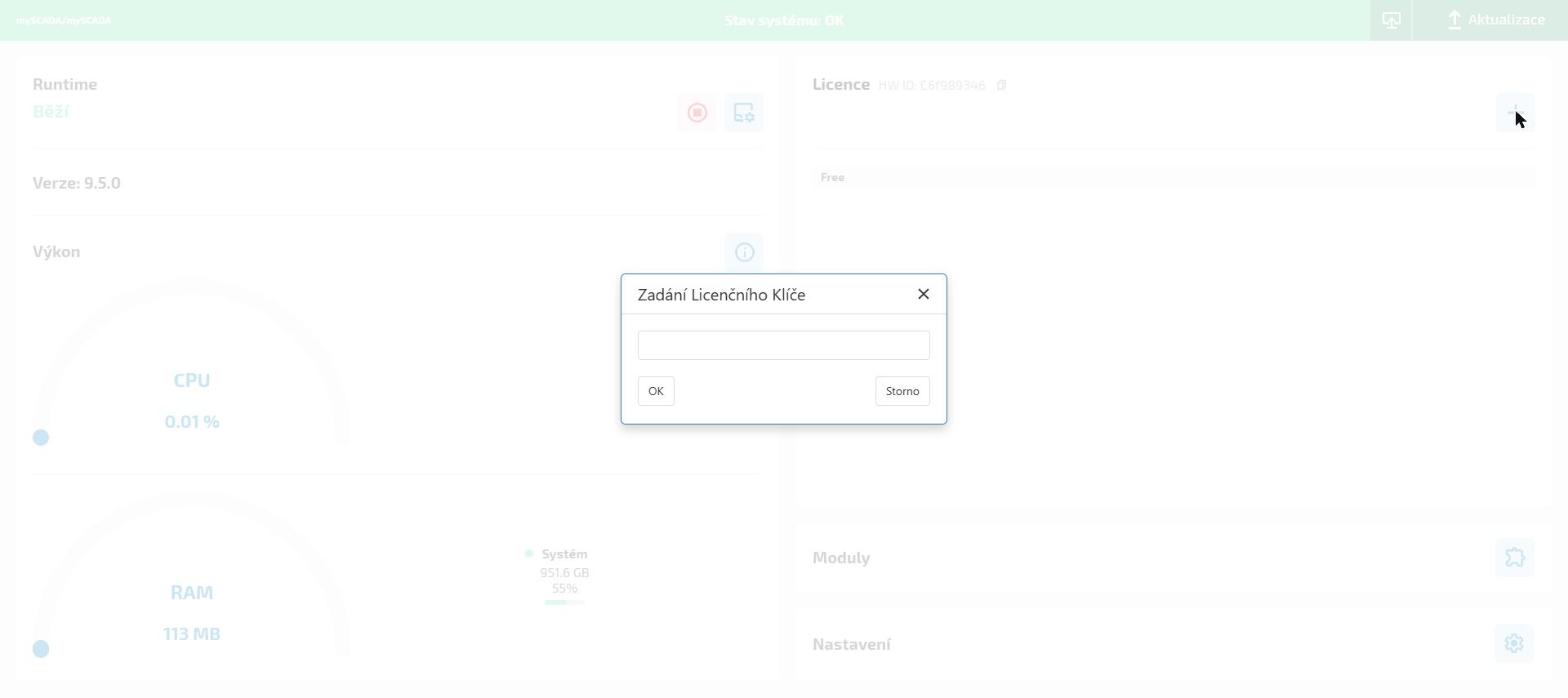
Paste the license key into the text field and click OK.
Result
The system will validate and apply the license. The Licence section will update to reflect the licensed capacity — for example, 150 Tags for a myPRO – 150 license.
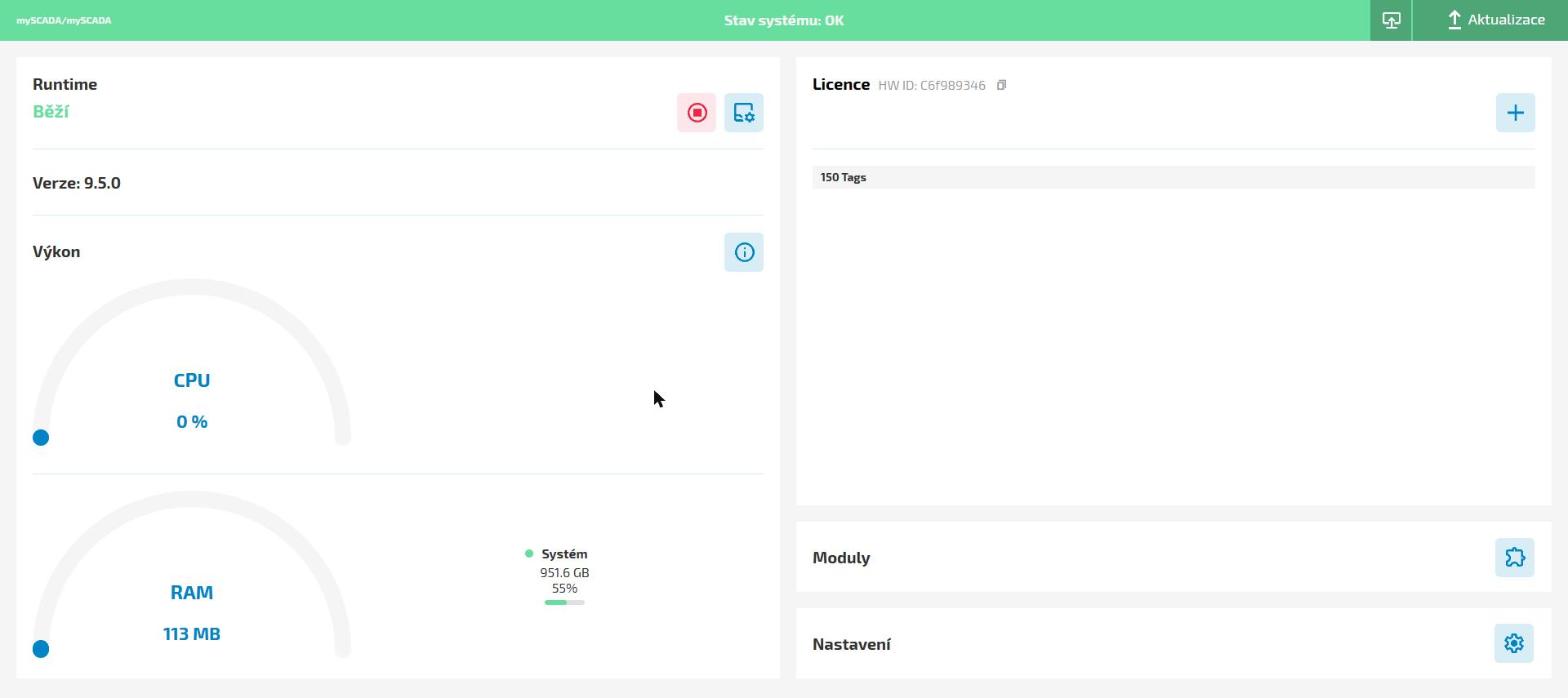
If the license is not accepted, verify that the HW-ID entered in the portal exactly matches the one shown in the PRO Manager.