
mySCADA PRO Manager › mySCADA PRO Manager › Settings
2FA authentification
2FA authentication allows an additional security layer over your mySCADA PRO manager.
This feature can be enabled directly after registering for the first time in mySCADA PRO Manager, or at any time under the user management tab.
- Head to Settings → Nastavení uživatelů (User Settings)
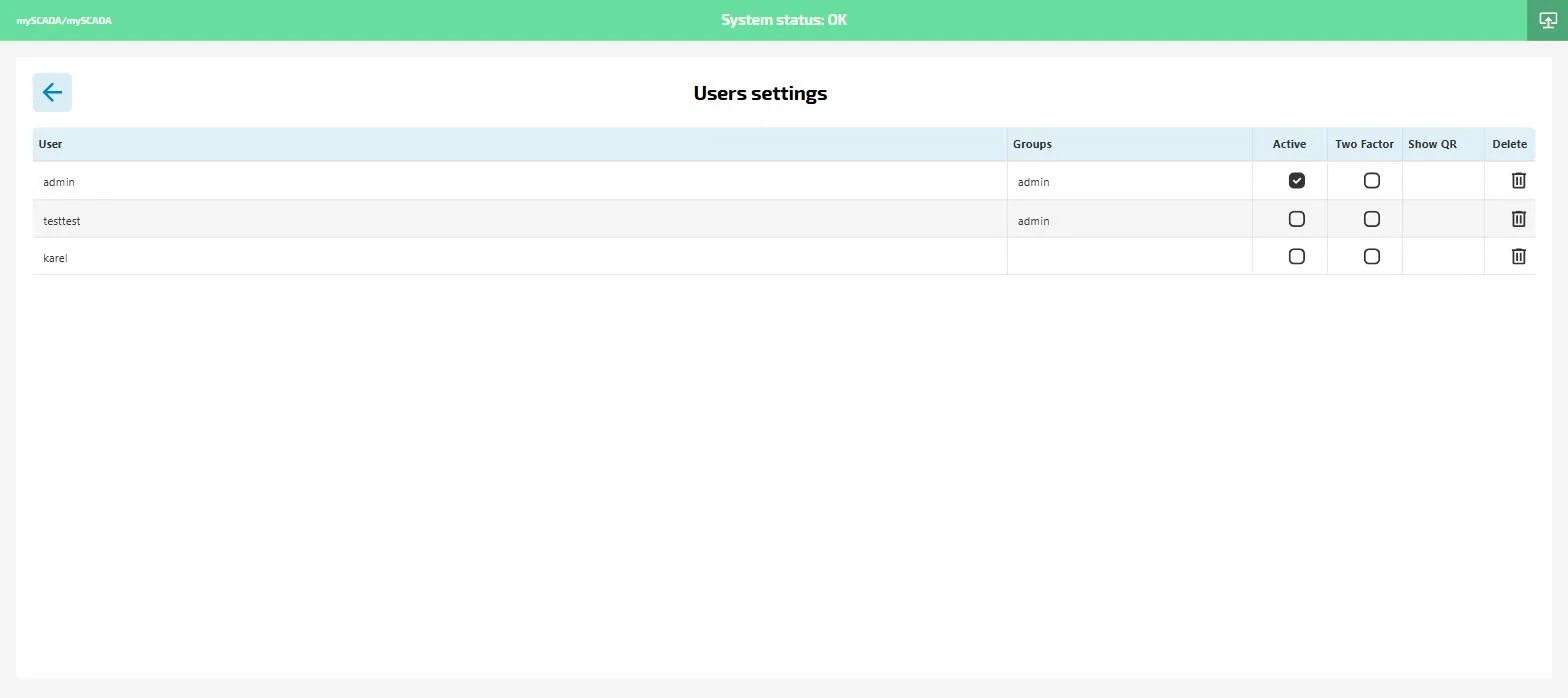
- Enable Dvoufaktor (Two-factor) for the user you want to protect
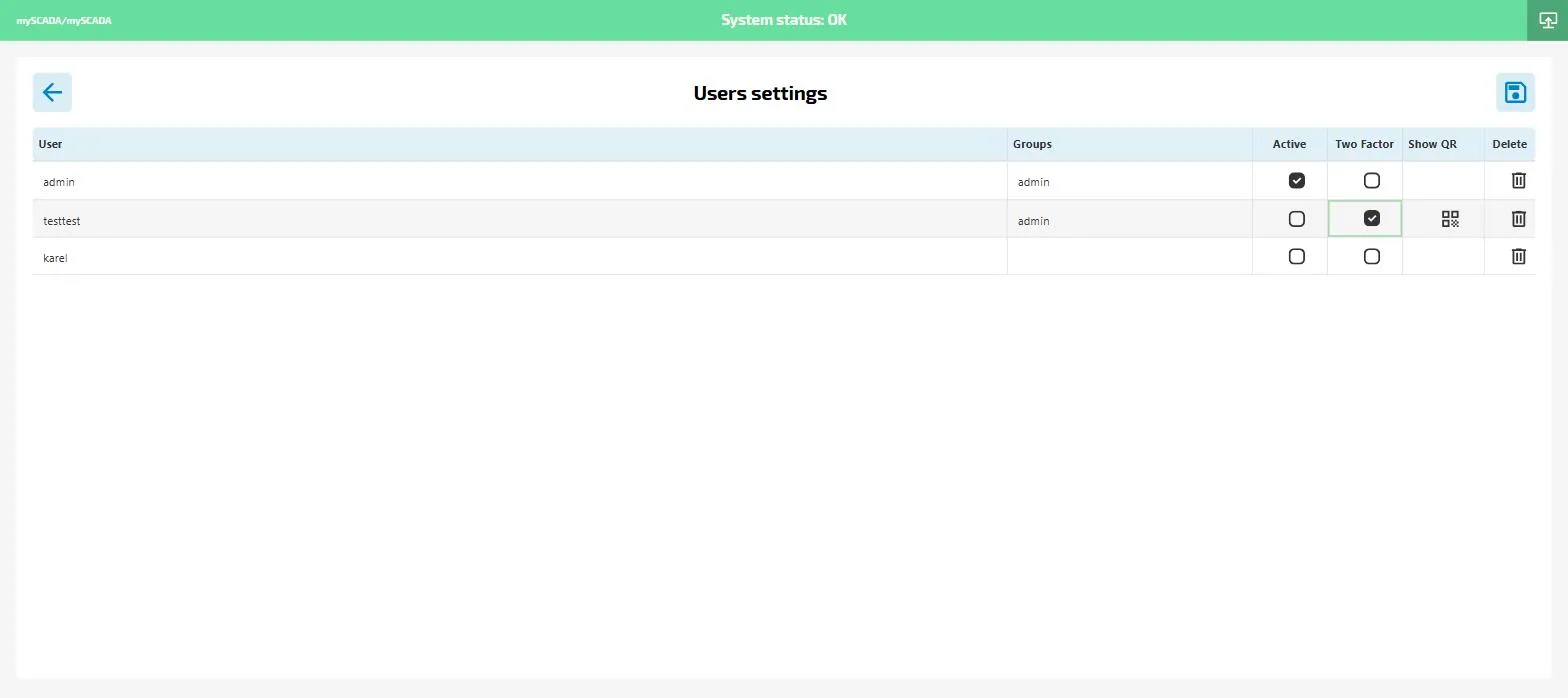
- Click the QR icon (Zobrazit QR) in the same row to display the setup QR code
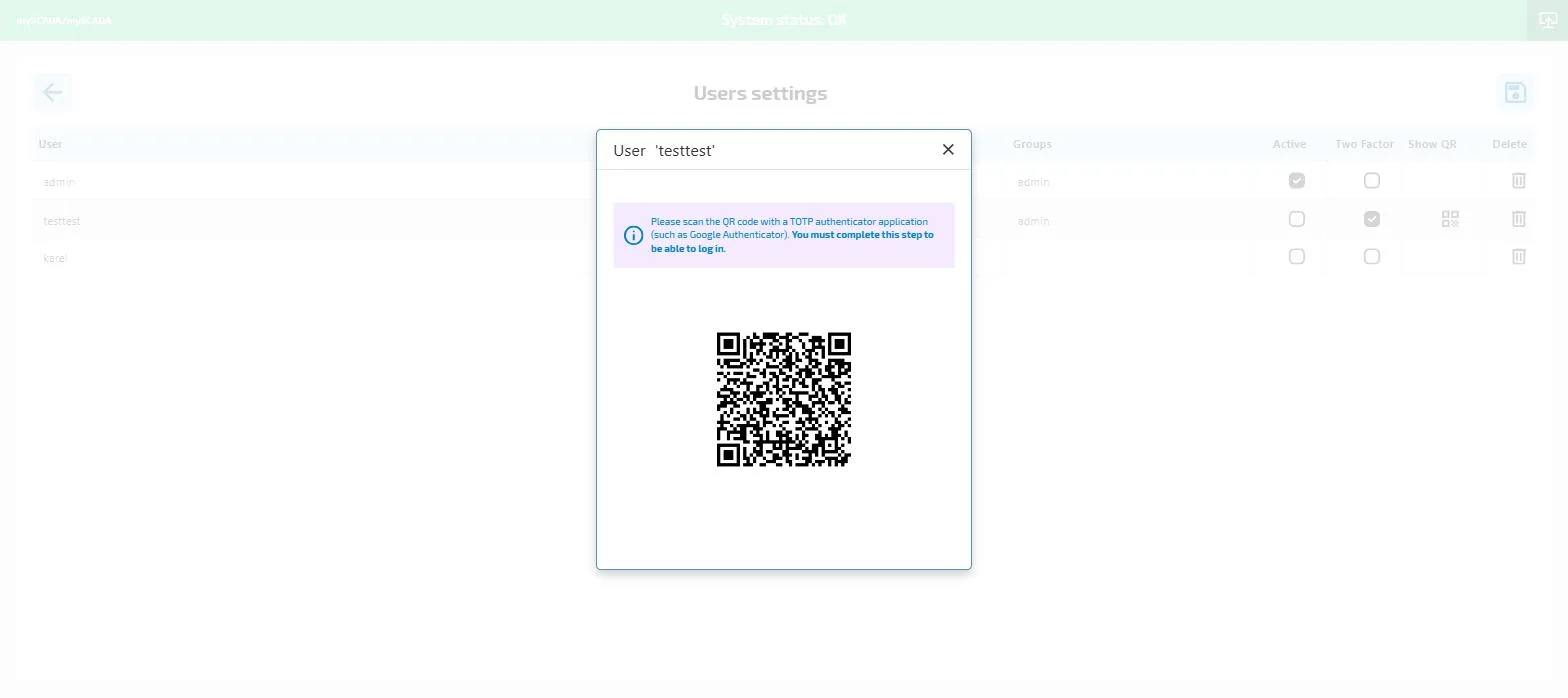
- Scan the QR code with a TOTP application (e.g. Google Authenticator or Authy)
Once the QR is scanned and the changes are saved, the user will be asked to enter a 2FA code from the application on every login.
Important: The time must be synchronized on the device running the TOTP application — 2FA will not work correctly if the clocks are out of sync.