
myACCESS › myACCESS
Browsing and Connecting to Devices
On this page
Device List
After logging in, the Devices tab shows all available devices organized in groups. Each device card displays:
- Colored dot — green = online, grey = offline
- Device name — identifier in the mySCADA system
- Status — Online / Offline
- Star icon — add the device to Favorites
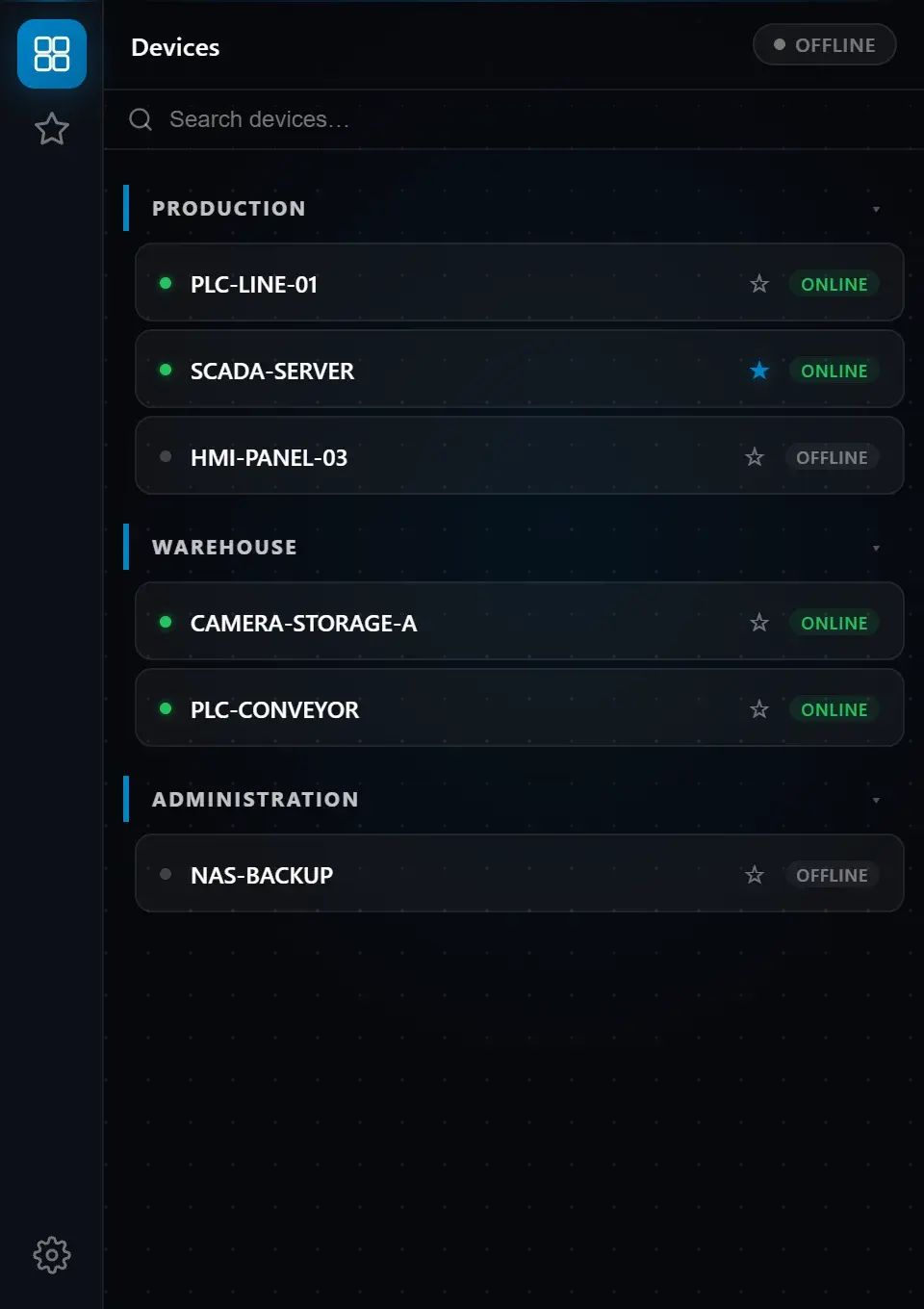 Fig. 5 — Devices tab with online and offline device groups
Connecting to a Device
- In the Devices tab, find the device you want to connect to.
- Click on the device card.
- The application starts the VPN tunnel — a status card appears at the top of the screen showing “Connecting…” and the progress through the Auth → Tunnel → IP phases.
- Once connected, the card turns green and displays the current ping in milliseconds.
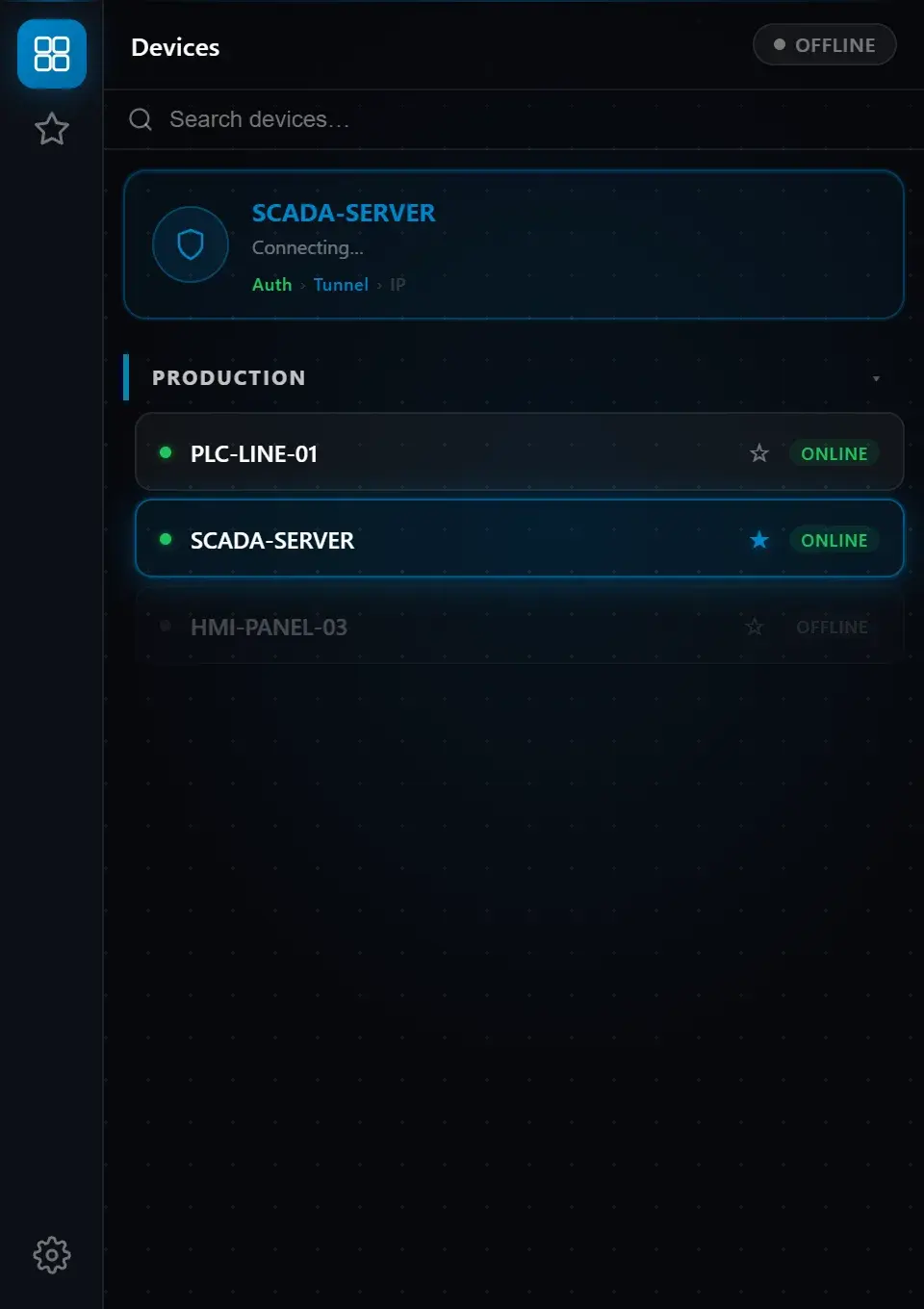 Fig. 6 — VPN connection in progress; selected card highlighted in blue, connection phase progress shown
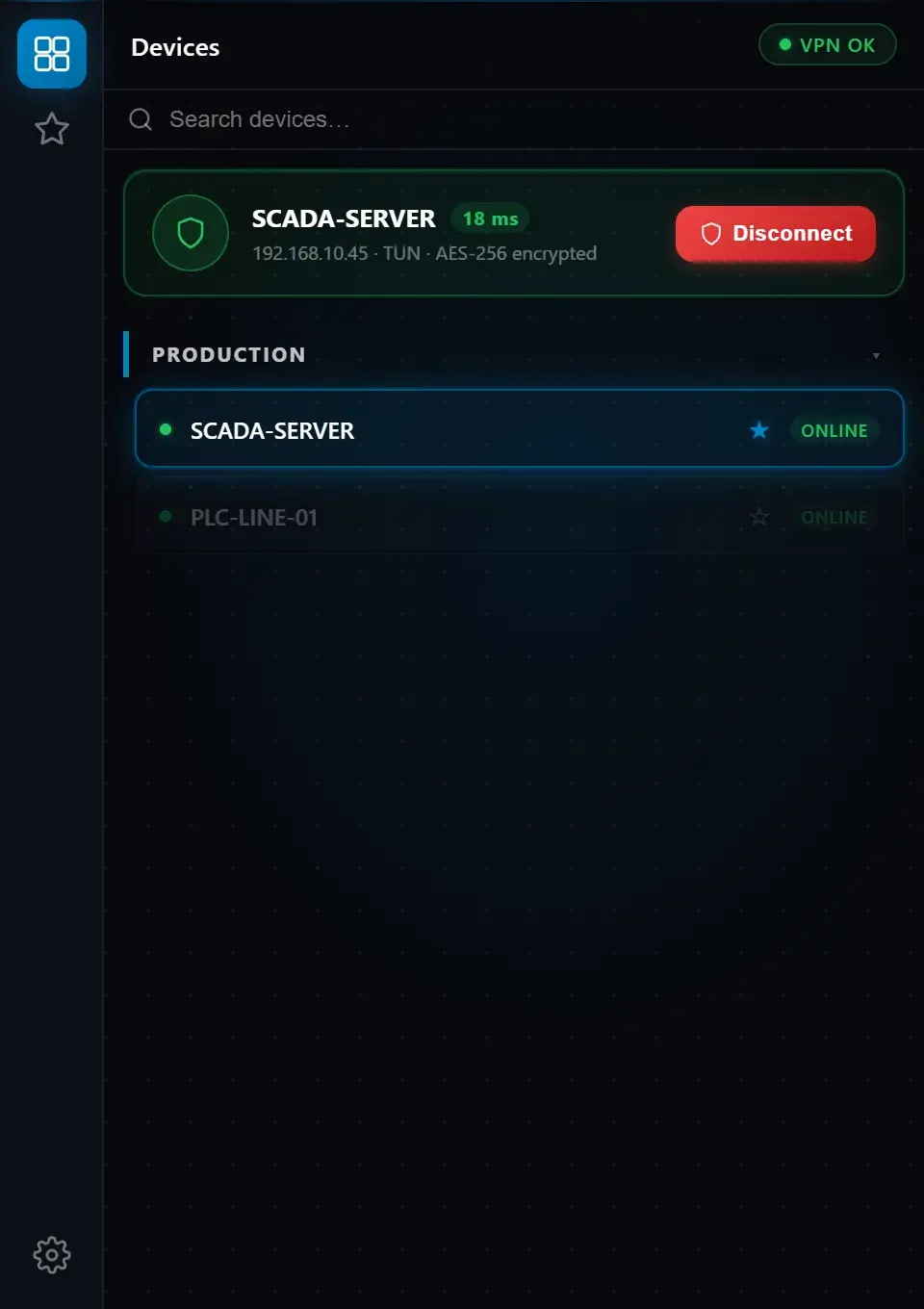 Fig. 7 — Successful VPN connection; green card, ping 18 ms, Disconnect button
Note: Only one VPN connection can be active at a time. When you connect to a different device, the previous connection is terminated automatically.
Accessing the Device
Once connected, the device is reachable at its internal IP address. Open a web browser or remote access software and enter this IP address.
Disconnecting
To end the VPN connection, click the Disconnect button on the active card, or close the myACCESS application.