myPANEL › myPANEL › myPANEL Manager
Settings
On this page
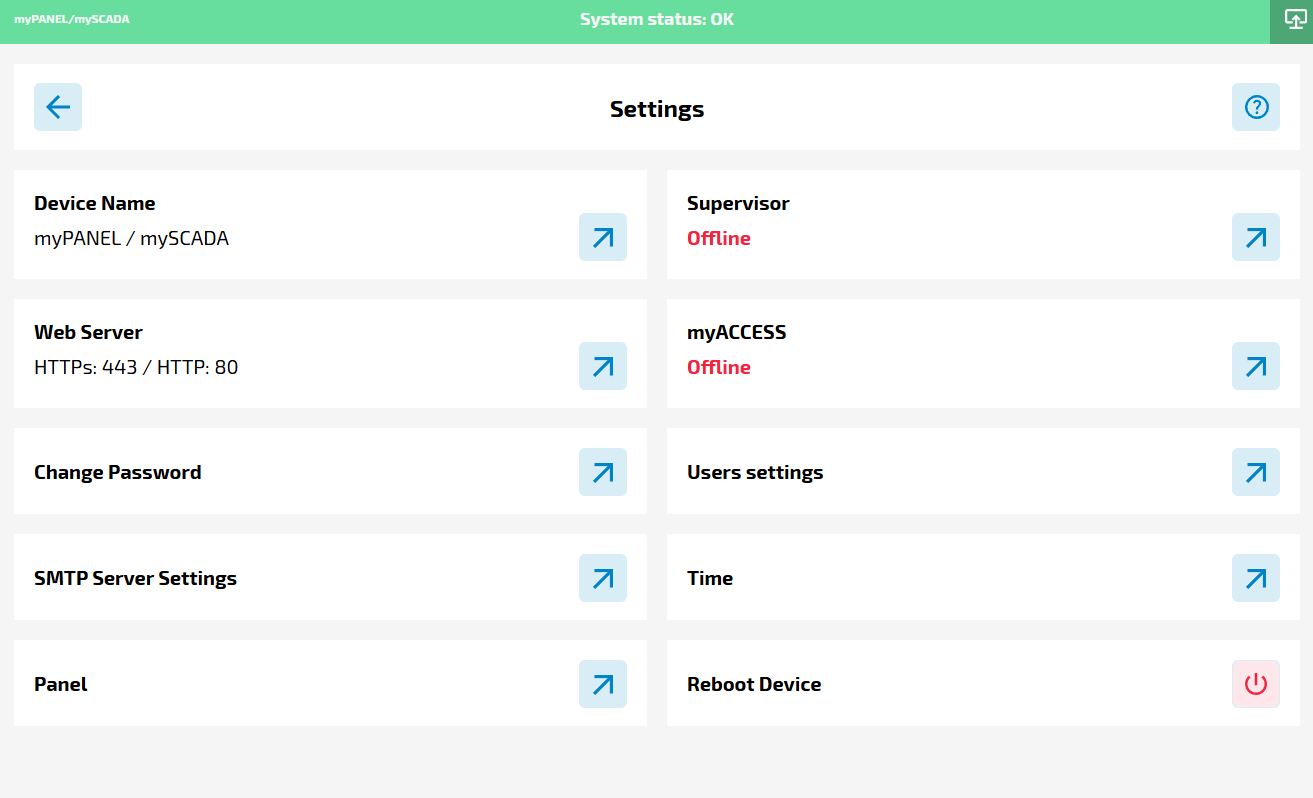
The Settings section provides essential configuration options for managing passwords, ports, and enabling remote access to your myPRO runtime.
Key Features
Device name specification
- By default, the device name is set to mySCADA IPC, which is the name that will be shown as well as the active host name
Port Configuration
- By default, the device name is set to mySCADA IPC, which is the name that will be shown as well as the active host name
Change Password
- Allows the user to change their own password
Backup/Restore
- Allows user to create a backup / restore file for the mySCADA PRO Manager config - network etc…
Supervisor
- COMING SOON!
myACCESS Service
- Provides the option to enable myACCESS, a service that connects the myPRO runtime to a remote server.
- Once enabled, a unique link is generated, allowing access to the runtime from any location with an internet connection.
- If myACCESS is not enabled, the myPRO runtime remains accessible only within the local network.
Note: This service requires the myPRO runtime to be running.
User settings (User management)
- Allows users with the administrator role to manage other users
Keep in mind that if you’re going to allow 2FA you have to scan the QR code into your authentificator app such as google authentificator if you don’t scan your QR code when creating user and allow 2FA you WON’T be able to access the application - this step is MANDATORY
Time (System time)
- System time settings - it allows user to specify / change the timezone and system time settings - please keep in mind that these settings have to be correct - set to be approximately the same as the device time that uses 2FA authentication for proper working conditions
This section ensures flexibility in security and connectivity, offering both local and global access options for the myPRO environment.
PANEL
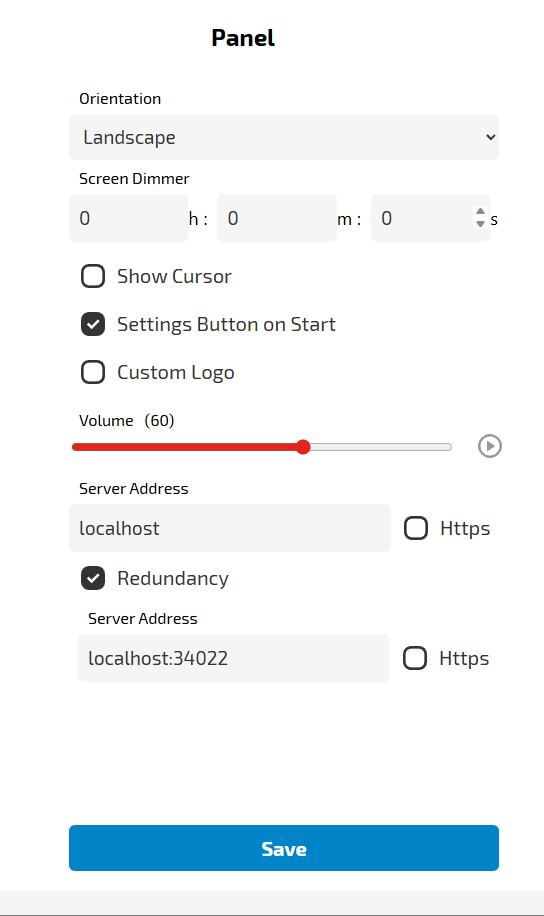
This section is used to control the panel-specific settings:
- Orientaton
- Allows do adjust the display orientation - Landscape / Portrait
- Screen dimmer
- Allows you to set a custom time to dim the screen
- Show cursor
- Allows to display a mouse cursor on the screen
- Settings button on start
- Allows displaying a button for entering settings (MANAGER) from the splash screen
- Custom Logo
- Allows you to use a custom logo on a splashscreen - startup
- Volume
- Allows you to adjust volume and test the sound output
- Server address & Redundancy
- Default address of the HMI server you want to display on the screen of myPANEL
For example, by default, the myPANEL screen will display the myPRO server HMI, in case of network issues - the server won’t be reached by myPANEL - the myPANEL will automatically switch to the redundant server address - to other server or to local myPRO that is myPANEL hosting on it’s own.
- Default address of the HMI server you want to display on the screen of myPANEL